
Website navigation guides visitors to your most important pages. If users cannot find what they want, they will leave your site. The default WordPress menu system works fine for simple blogs. However, it lacks advanced design options for growing businesses.
Table of Contents
A WordPress menu plugin adds powerful features to your site. You can build large columns, add product images, and create smooth mobile experiences. In this guide, you will learn exactly how to choose, install, and optimize a navigation plugin for your specific needs.
What Is a WordPress Menu Plugin?
A menu plugin is an add-on tool that upgrades your website navigation. It replaces or enhances the standard WordPress menu system.
The default system only lets you create basic dropdown text links. A WordPress navigation plugin gives you full visual control. You can add images, maps, forms, and custom colors directly into your header. You actually need one when your website has dozens of pages, an online store, or complex categories.

Why Use a WordPress Menu Plugin?
Create Custom Navigation
Standard menus look the same on every site. A plugin lets you design a unique layout that matches your brand perfectly.
Build Responsive Menus
Your menu must shrink and adapt to different screen sizes. A responsive menu plugin for WordPress handles this automatically.
Improve Mobile Navigation
Mobile users tap screens instead of clicking mice. Plugins create large, touch-friendly buttons for easier mobile browsing.
Create Mega Menus
Mega menus display large panels of links. You can show dozens of pages at once without overwhelming the user.
Add Dropdown Navigation
You can organize child pages under parent links easily. This keeps your main header clean and uncluttered.
Add Menu Icons
Visual cues help users navigate faster. Plugins let you add small icons next to your text links.
Create Sticky Navigation
Sticky menus stay at the top of the screen as users scroll down. This keeps your links accessible at all times.
Build Off Canvas Menus
Off-canvas menus hide off the side of the screen. They slide into view only when a user clicks the menu button.
Types of WordPress Menu Plugins
WordPress Mega Menu Plugins
A WordPress mega menu plugin builds massive, multi-column navigation panels. You can sort links into categories and display product images. They work perfectly for large websites and complex ecommerce stores.
Responsive Menu Plugins
A responsive menu plugin for WordPress ensures your links look perfect on any device. It automatically resizes fonts and buttons based on the user’s screen size.
Mobile Menu Plugins
A WordPress mobile menu plugin focuses entirely on phone users. It replaces your desktop menu with a touch-friendly mobile interface.
Dropdown Menu Plugins
A WordPress dropdown menu plugin creates multi-level lists. When a user hovers over a link, a vertical list of sub-pages appears smoothly.
Sticky Menu Plugins
A WordPress sticky menu plugin locks your header in place. The navigation bar follows the user as they scroll down long articles.
Off Canvas Menu Plugins
A WordPress off canvas menu plugin saves screen space. It hides your navigation in a hidden sidebar until the user requests it.
Menu Icon Plugins
A WordPress menu icons plugin adds visual graphics to your text links. You can use standard font icons or upload your own images.
Important Features to Look for in a WordPress Menu Plugin
Responsive Design
The plugin must adapt seamlessly to phones, tablets, and desktop computers.
Mega Menu Support
Look for the ability to build wide, multi-column panels for complex site structures.
Mobile Navigation
Ensure the tool offers specific layouts designed purely for smartphone users.
Drag and Drop Menu Builder
A visual WordPress menu builder lets you organize links without touching any code.
Dropdown and Multi-Level Menus
You need the ability to stack menus three or four levels deep if necessary.
Menu Icons
The tool should support popular icon libraries like FontAwesome or Dashicons.
Sticky Navigation
Check if the plugin can lock the menu to the top of the browser window.
Off Canvas Navigation
See if it offers slide-out sidebars for a cleaner mobile experience.
Custom Styling Options
You must be able to change background colors, fonts, and borders easily.
Multiple Menu Locations
The plugin should let you place unique menus in your header, footer, and sidebars.
Accessibility Support
Your menu must work for users who rely on keyboards or screen readers.
Performance Optimization
The tool must load quickly without slowing down your website speed.
Compatibility With WordPress Themes
Ensure the plugin works flawlessly with your current website design.
WooCommerce Compatibility
If you sell products, the plugin must support shopping carts and product categories.
How to Choose the Best WordPress Menu Plugin
Check the Features
Make a list of what you actually need. Do not buy a heavy mega menu tool if you only need simple dropdowns.
Check Mobile Responsiveness
Test the plugin demo on your own phone before you buy it. It must tap easily.
Consider Website Performance
Heavy plugins slow down your site. Read reviews to ensure the code is lightweight and fast.
Check Theme Compatibility
Some plugins clash with specific themes. Check the developer’s compatibility list before installing.
Look for Customization Options
You should be able to match your brand colors without writing custom CSS code.
Check Plugin Updates
Avoid plugins that have not been updated in the last six months. Outdated code causes security risks.
Review Support and Documentation
Good developers provide clear setup guides and fast customer support tickets.
Check User Reviews and Ratings
Read what other users say. Look for complaints about speed or mobile glitches.
Consider Pricing
Compare the free version against the premium upgrade. Ensure the yearly cost fits your budget.
How to Create a Custom Menu in WordPress
Step 1: Open the WordPress Dashboard
Log into your website. Look at the left-hand sidebar menu.
Step 2: Create a Navigation Menu
Go to Appearance > Menus. Click the “create a new menu” text link. Give your menu a name.
Step 3: Add Pages and Links
Look at the left column. Select the pages, posts, or custom links you want to include. Click “Add to Menu.”
Step 4: Organize Menu Items
Drag and drop the menu items into your preferred order. Put the most important pages first.
Step 5: Add Dropdown Items
Drag a menu item slightly to the right under another item. This makes it a sub-item in a dropdown list.
Step 6: Assign the Menu Location
Look at the bottom of the screen. Check the box for your desired location, like “Primary Menu.”
Step 7: Customize the Menu
Save your changes. If you use a WordPress navigation menu plugin, open its settings panel to style the colors.
Step 8: Test the Menu on Mobile Devices
Open your website on a smartphone. Check that every dropdown works smoothly.
How to Create a Mega Menu in WordPress
Building a mega menu requires a dedicated tool. First, choose a suitable WordPress mega menu plugin. Install and activate it from your dashboard.
Create your main navigation structure under Appearance > Menus. Hover over a top-level link and click the new “Mega Menu” button provided by your plugin. Configure your submenu columns inside the popup window. You can add categories, text widgets, or images into these columns. Customize the styling to match your brand. Finally, test the desktop and mobile layouts to ensure they display correctly.
How to Create a Mobile Menu in WordPress
Mobile navigation requires a different approach than desktop menus. Install a dedicated WordPress mobile menu plugin.
Configure the tool to display a “hamburger menu” icon on small screens. When tapped, this opens a touch-friendly navigation panel. Use responsive menu layouts that fit vertically on a phone. Set your screen-size breakpoints so the mobile menu triggers only on phones and tablets. Ensure your mobile submenu behavior uses click-to-open toggles instead of hover effects.
How to Create a Responsive Navigation Menu
A responsive menu changes its shape based on the user’s screen. On a desktop monitor, it displays horizontally. On a laptop, it might hide less important links.
On a tablet or smartphone, it collapses into a single clickable icon. A responsive plugin manages these transitions automatically. You must test your navigation on multiple screen sizes. A menu that looks great on a laptop might break completely on a narrow mobile screen.
Best WordPress Menu Plugin Features for Ecommerce Websites
Product Categories
Shoppers need to find specific product types quickly. Your menu should organize categories clearly.
Mega Menus
Large stores need mega menus to show dozens of product sections at a single glance.
Mobile Navigation
Most shoppers buy on their phones. Your mobile menu must be fast and flawless.
Search Integration
Place a prominent search bar directly inside your navigation header.
Product Images
Display featured product photos inside your dropdown menus to catch the buyer’s eye.
Multi-Level Navigation
Allow shoppers to drill down from broad categories into specific sub-categories easily.
WooCommerce Compatibility
Ensure you choose a WordPress menu plugin for WooCommerce that displays shopping cart totals dynamically.
How WordPress Menu Plugins Improve User Experience
Good navigation creates a better user experience. It provides easier navigation across your entire site. Users get faster access to important pages and sales pages.
A clear website structure encourages better content discovery. It keeps visitors reading your articles longer. Improved mobile usability stops frustrated users from leaving. Better organization for large websites helps people find exact answers quickly.
Common WordPress Menu Problems and Solutions
Menu Is Not Responsive
Check your plugin settings. Ensure the mobile breakpoint is set correctly for modern phone widths.
Dropdown Menu Is Not Working
This is usually a JavaScript error. Deactivate your other plugins one by one to find the conflict.
Menu Overlaps Website Content
Adjust the z-index setting in your menu plugin. A higher z-index keeps the menu on top.
Mobile Menu Is Too Large
Reduce your font sizes and padding in the mobile styling settings. Remove unnecessary links for phone users.
Menu Loads Slowly
Disable any complex animations or heavy background images in your menu header.
Menu Conflicts With the Theme
Your theme might have a built-in mobile menu. Disable the theme’s default menu in the customizer.
Menu Does Not Work After a Plugin Update
Clear your website cache. If it still breaks, roll back to the previous plugin version.
Menu Looks Different on Mobile
Mobile browsers render fonts differently. Use standard web-safe fonts for the most consistent look.
WordPress Menu Plugin Performance Tips
Keep the Menu Structure Simple
Do not overwhelm users. Use clear, broad categories instead of listing every single page.
Avoid Too Many Menu Items
A cluttered header confuses visitors. Move less important links to your footer navigation.
Optimize Menu Images
If you use images in a mega menu, compress them first. Large image files slow down your page speed.
Use Lightweight Plugins
Choose plugins known for clean code. Avoid tools packed with features you will never use.
Keep Plugins Updated
Developers release updates to improve speed. Always run the latest version of your tools.
Test Plugin Compatibility
Ensure your menu tool works perfectly with your caching plugin to prevent visual glitches.
Check Mobile Performance
Run your site through Google PageSpeed Insights. Ensure the mobile menu does not cause layout shifts.
WordPress Menu Accessibility Best Practices
Your website must be usable for everyone. Keyboard navigation is essential. Users should be able to tab through your links without a mouse.
Use clear labels for every link. Ensure visible focus states appear when a user highlights a menu item. Program proper submenu behavior so screen readers can announce dropdowns. Use readable text with sufficient contrast against the background color. Build screen-reader-friendly navigation using proper HTML tags. Finally, ensure all buttons offer touch-friendly controls with plenty of tapping space.
Top-Rated WordPress Menu Plugins of 2026
Login Logout Menu:
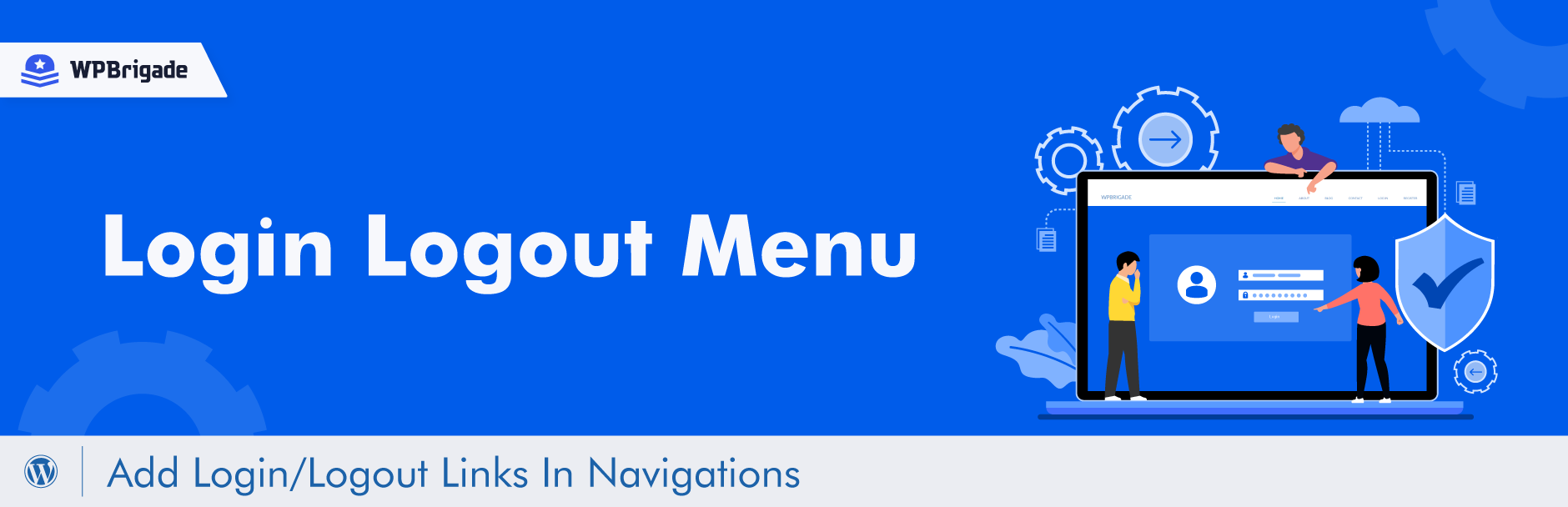

My Header Footer is one of the most efficient free WordPress Menu plugins that lets you create seamless mega menus with drop-down buttons. With this plugin, you can easily create your own header with the help of the intuitive content builder.
You can also create your own footer using the content builder. It enables you to remove your listing header and footer for easy menu creation. Also, you can build appealing headers using the drop-down button and mega menus.
The plugin enables you to create complicated menus along with columns, rows, sliders and carousels, maps, and many other additions.
Moreover, it also lets you add buttons and for creating more stylings. Set seamless colors, fonts, borders, and device-specific visibility for a friendly, intuitive WordPress site.
WP Responsive Menu:
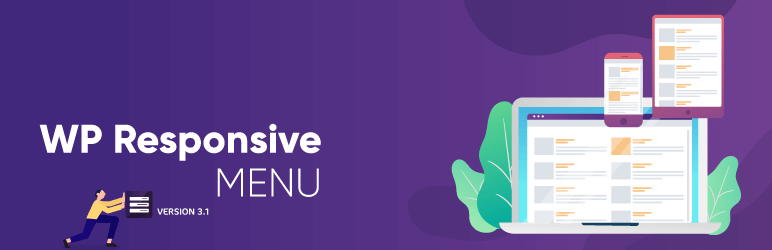
WP Responsive Menu is a simple and easy plugin that enables you to add a customizable and responsive menu to your WordPress site. You can easily customize directly from your setting page without the need for any coding knowledge along with this top WordPress menu plugin.
The WP Responsive Plugin enables you to create a beautiful slide menu within seconds. Thus, the menu it makes works better on the various mobile devices.
The menus are very easy to customize using the direction shifting to top/bottom/left/right that goes suitable with your site.
You can easily add logos to the menu bar and specify links for the menu. There are various options to change the menu icon animation that goes suitable for your site. Moreover, the menu plugins comes with multiple display options that go suitable for your site.
You can also hide the unwanted elements on your active menu to make it more responsive. You can also easily configure the font size and style from the setting area.
Duplicate Menu:
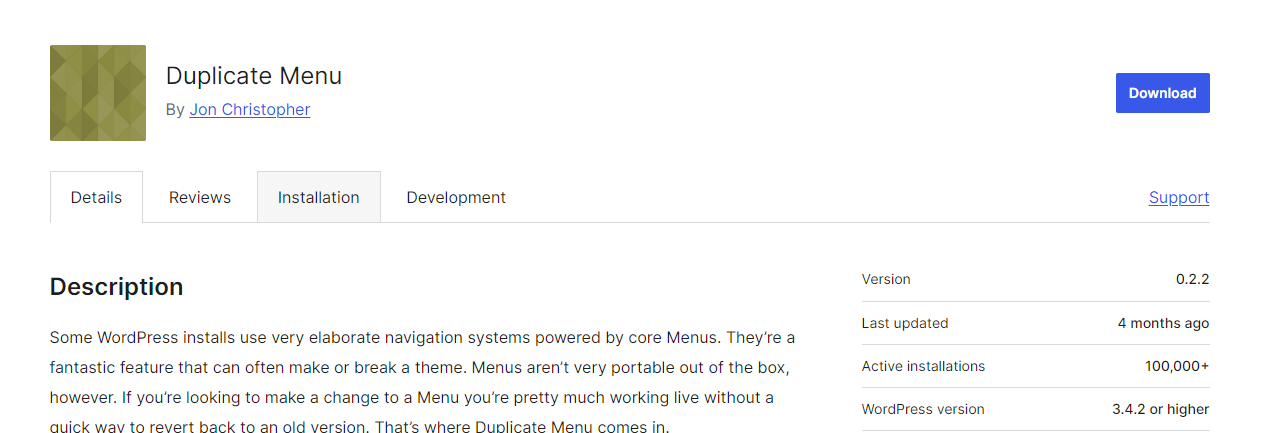
If you are searching for a free plugin for your WordPress site, then the Duplicate Menu is the most efficient one.
The Groovy Menu is responsive and comes for free, with which you can add various attractive menus to your site for better navigation, which makes it a top WordPress menu plugin.
The plugin is too easy to customize and that you can easily do by logo unloading and adding fonts, colors, and sizes. The large and extensive range of features includes the vertical and mega menu.
You can also create a page menu, sub-menu, toolbar menu, DIVI compatibility, mobile menu, GDPR compliance, Responsive full-width mega menu, and many more.
Besides that, the plugin comes with the 2 hover types, RTL support, WooCommerce Mega Menu, preview mode, WPML ready service, and Smooth scrolling features, etc., which enhances the better menu addition to your WordPress site.
At the same time, the plugin comes with a premium plan that you can opt for more advanced features.
Related Post: How to Add Icons to WordPress Custom Menus Without Plugins
Nav Menu Roles:

The AP Mega Menu comes as a free WordPress plugin for Mega Menu. If you want to create various widgets column wise on your site and configure them for making the horizontal and vertical mega menu, then this one is ideal.
This plugin supports Flyout or Mega Menu and lets you easily create the menu through drag and drop. You can easily select them for matching templates and various layouts and themes that go suitable for your WordPress site.
The free version comes with an extensive range of features. Also, it comes with the hover or clicks trigger effect for opening the menus. There are general settings for per menu options along with an Active menu link and disable menu text.
You can easily align the menu items from left to right precisely for the search type menu. It comes with a fade or slide transition.
From horizontal mega menu position to the extra top-bottom section with options for uploading images, this plugin boasts all the essential features to add a menu to your WordPress site.
WordPress Mega Menu- QuadMenu:
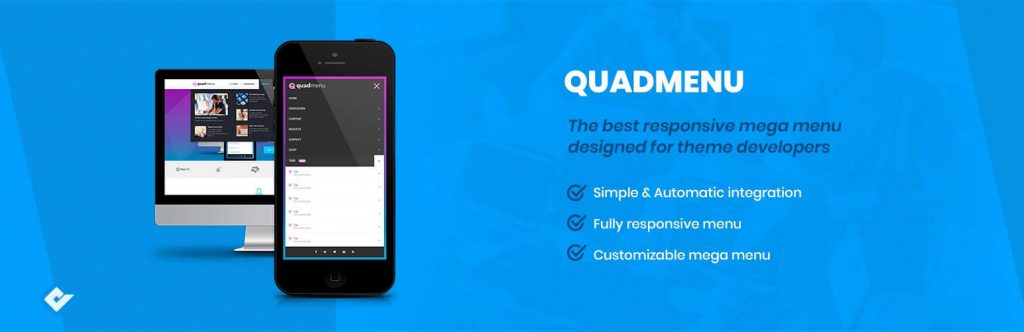
The WordPress Mega Menu plugin is efficient for creating a mega responsive menu for designing themes developers along with various customizable menu layouts. Therefore, it comes with megamenu drag & drop fields.
QuadMenu allows you to integrate menus easily on your project theme. You can create simple menus, mega menus, and carrousel menus in a very simple and native way of converting the existing one.
It boasts simple and Automatic integration from the simple to mega menu. The intuitive design lets you quickly set the mega menu. You can easily remove or add fields and modify the options using drag and drop.
Besides that, it lets you create menus that come easier and highly responsive to the mobile. It has various layouts and a drag and drop option to customize the menu setting.
WP Mobile Menu – The Mobile-Friendly Responsive Menu:
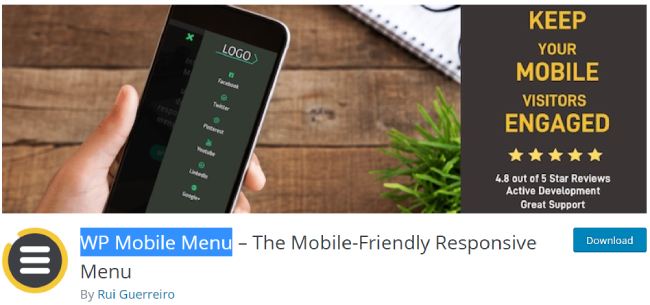
To improve your mobile website experience, this plugin helps you in various ways. This plugin is efficient for creating multiple user-engaging, responsive mobile menus for your WordPress site.
A large number of features lets you create a 3-depth menu level, naked header. You can also create an overlay mask. There are options for the logo and text branding. You can also add a background image for the menus.
The plugin lets you hide the specific elements when the mobile menu is visible. It comes to switch Google fonts, customizable styling for the mobile menus, various display types, etc.
Moreover, it also features the live header search, header banner, disabling of mobile menus in specific pages with the premium version.
Menu Cart for WooCommerce:

For building an efficient mega menu on your WordPress site, this plugin comes with various options and features as a top WordPress menu plugin. This menu plugin lets you create various attractive navigation menus on your website.
The plugin comes with a variety of options for customizing the styles of the menus using various drag and drop tools.
You can easily beautify items using the various attributes, colors, fonts, etc. The features of this plugin contain the drag and drop menu builder panel, various themes, and skin options, importing and exporting of themes, the search bar in the menu, dash icons, and font icon support.
It also introduces to you the google fonts, variety of colors, responsive support, mobile menu support along with unlimited options, and menu background images for an intuitive WordPress site.
Max Mega Menu:

Max Mega Menu is a powerful, well-supported, feature-rich and user-friendly menu plugin for WordPress based websites, which is grounded on fully responsive layout to provide exceptional user and visitor practice irrespective of the device or mobile used.
This awesome menu extension includes a bunch of reliable and easy to use plugin components, including more than 100 customization options, drag and drop menu design, Flyout support making everything one-click, sub-menu inclusion, the availability to add diverse icons to menu items.
Fade and slide transition effects, hide text and disable link options, dispose menu items and sub menus to the left or right of the menu bar and other features. Max Mega Menu also comes with perfect support and documentation, as well as cross browser compatibility.
Responsive menu:
This free menu plugin for your WordPress website is well-optimized for being complete customizable by offering about 70 customization and management options to provide the best look and comfort of your relevant website, irrespective of its nature or type.
Apart from that, this product is praised for its complete responsive design. Having this professionally developed plugin at your command, you will be able to change the menu title and its image, button title and its image, control and customize the menu and sub menu depths.
Hide certain elements with the help of CSS options, modify the colours of lines, texts, menu button background, as well as fonts, colour of menu title, hover colour of menu title and not only. Pro version is also available with its premium features.
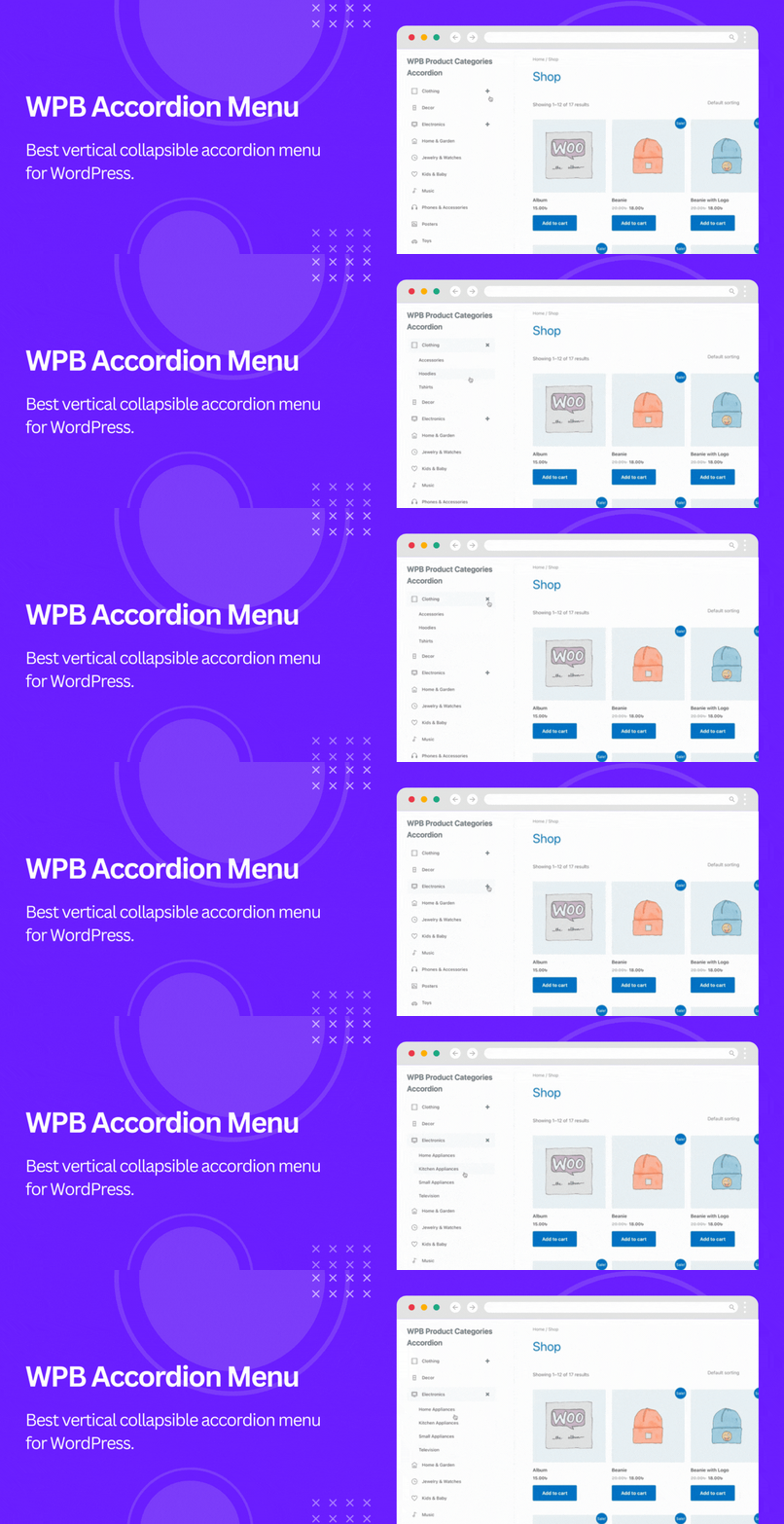
WPB Accordion Menu – Responsive Collapse Vertical Sidebar Menu – WooCommerce Category Accordion:
The next dependable, feature-rich, highly customizable and entirely responsive free menu plugin, which will give us access to unlimited number of relevant customization and set options, is WR Mega Menu.
It will cover all the default inconveniences and will turn your website menu into a very easy to use tool, by means of which you will be able to control profiles by creating menu settings into different profiles for diverse purposes.
Live preview for feeling all the changes undertaken immediately, choose whether you want to showcase your menu icon or text, select between available vertical and horizontal menu orientations and yet much more to come with this outstanding WordPress plugin.
Advanced Sidebar Menu:
By choosing and installing Advanced Sidebar Menu plugin for your WordPress supported website, you will have all the potential to obtain the maximum from your menu area and its execution, and hence, admire your website visitors and guests with super functionality and content.
This perfect template lets you add icons to menu items, select the view of sub menus, insert shortcode or HTML in Menu description, utilize transition effects, choose among the proposed 4 column styles or activate full width dropdown navigation.
Final Thoughts
A WordPress menu plugin transforms how users navigate your website. It replaces basic text links with powerful, visual layouts. It becomes highly useful when your site outgrows the default WordPress system.
Important features include responsive design, mega menu support, and touch-friendly mobile controls. Always prioritize performance and accessibility when building your header. Do not sacrifice website speed for flashy animations.
Choose a WordPress menu plugin that matches your website structure, design requirements, mobile needs, performance goals, and navigation complexity.
Frequently Asked Questions About WordPress Menu Plugins
What is a WordPress menu plugin?
It is a tool that upgrades your website navigation. It adds advanced design and mobile features to your header.
Do I need a menu plugin for WordPress?
You only need one if you want complex layouts, mega menus, or better mobile controls. Basic blogs do fine without them.
What is the best WordPress menu plugin?
The best plugin depends on your needs. Mega menu plugins work best for stores. Mobile plugins work best for phone traffic.
Can I create a mega menu in WordPress?
Yes, but you need a dedicated mega menu plugin to build multi-column dropdowns.
How do I create a mobile menu in WordPress?
Install a responsive menu plugin. It will automatically convert your desktop links into a mobile hamburger menu.
Can I create a responsive menu without coding?
Yes. Modern menu builders use visual drag-and-drop interfaces. You never need to write code.
Can WordPress menus have dropdowns?
Yes. The default WordPress system supports basic dropdowns. Plugins allow for much larger, styled dropdowns.
Can I add icons to WordPress menus?
Yes. Many menu plugins let you assign visual icons to your text links easily.
What is an off canvas menu?
It is a menu that hides off the screen. It slides smoothly into view when a user clicks a button.
Can a menu plugin work with any WordPress theme?
Most work flawlessly. However, heavily customized themes might require minor code tweaks to hide the default menu.
Can I use a menu plugin with WooCommerce?
Yes. Many premium menu plugins integrate directly with WooCommerce to show carts and categories.
Do WordPress menu plugins slow down websites?
Heavy plugins can slow things down. Choose lightweight, highly-rated tools and optimize your images.
 Sonal S Sinha is a digital architect and seasoned developer with over 16 years of experience in the web world. As the founder of a premier design and marketing agency, he has helped thousands of startups and small businesses define their identity through custom WordPress theme development.
A self proclaimed WooCommerce enthusiast, Sonal is dedicated to making professional design accessible to everyone. He regularly shares his expertise and a curated selection of free WordPress themes to help new creators launch with confidence. Follow Sonal for a consistent masterclass in scaling your online presence.


StarsMenu is a powerful, advanced, user-friendly and absolutely responsive Plugin which is designed for WordPress. By using this Plugin, you can automatically convert your menu(s) to a modern and attractive hamburger shaped menu. This Plugin allows you to add an interesting responsive mobile navigation menu to your website which is similar to popular and native menus of Mobile Applications. …
Free Download: https://wordpress.org/plugins/stars-menu/
Excellent article! This is really helpful to used my business site development.
Thanks.