
Harnessing your website with social media integration is one of the best marketing tools for any website or blog.
Table of Contents
As for Facebook as one of the dynamic and overpopulated social media platforms, it can never be overcome if you want to make your site and its content socially friendly and socially optimised.
A colossal audience with more than one billion daily users, Facebook has long become a hotspot of personal and business interactions leading to new ties and beneficial cooperation.
While the advantages of this network are endless, it is more than compulsory for every modern website to use this powerful marketing form in all the possible ways.
Automatically Post Images on Facebook Posts/Pages
In this relation, one of the practical ways to boost social integration and grow your business through Facebook, you have to take care of channels to post your web images, posts, and pages on Facebook.
Along with other strategies to be used for your website to find its visitors, posting your web content on Facebook is a low–cost method and requires little endeavor.
The thing is that sharing your WordPress based profile, basic information, pictures, and images of your site with Facebook audience can be easily done through a number of practical ways.
Hence, if you clearly understand the huge potential of Facebook as one of the biggest sources of traffic and new leads, this article will help you in comprehending how to automatically post images and posts/pages on Facebook.
At the very beginning, let’s clarify why you need to share your content with Facebook. Integrating Facebook with your WordPress website has much to do with growing audience, boosted traffic and the overall socialisation of your website.
And while you are not able to automate the engagement of your web visitors, you can at least automate the process of adding relevant posts and pages on Facebook.
Now let’s see what you can do when it comes to sharing your website or blog content with social audience on Facebook. Generally speaking, there are several ways around this topic which we are going to discuss one after another.
1. Circleboom Publish to automatically post images and posts/pages on Facebook
For automatically posting images and texts on Facebook Pages and Facebook Groups, Circleboom Publish, the most comprehensive, the most trusted, and the most affordable, is the best tool and our favorite choice.
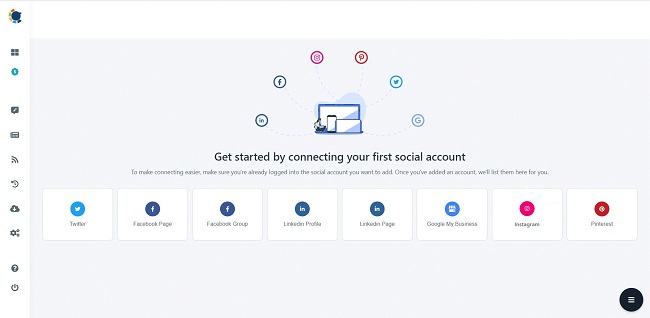
On Circleboom, you can connect and manage your multiple Facebook Pages and Facebook Groups quickly and effectively. You can auto-share your images, texts, blog articles, and other content with Circleboom’s Facebook Auto Poster in a few seconds.
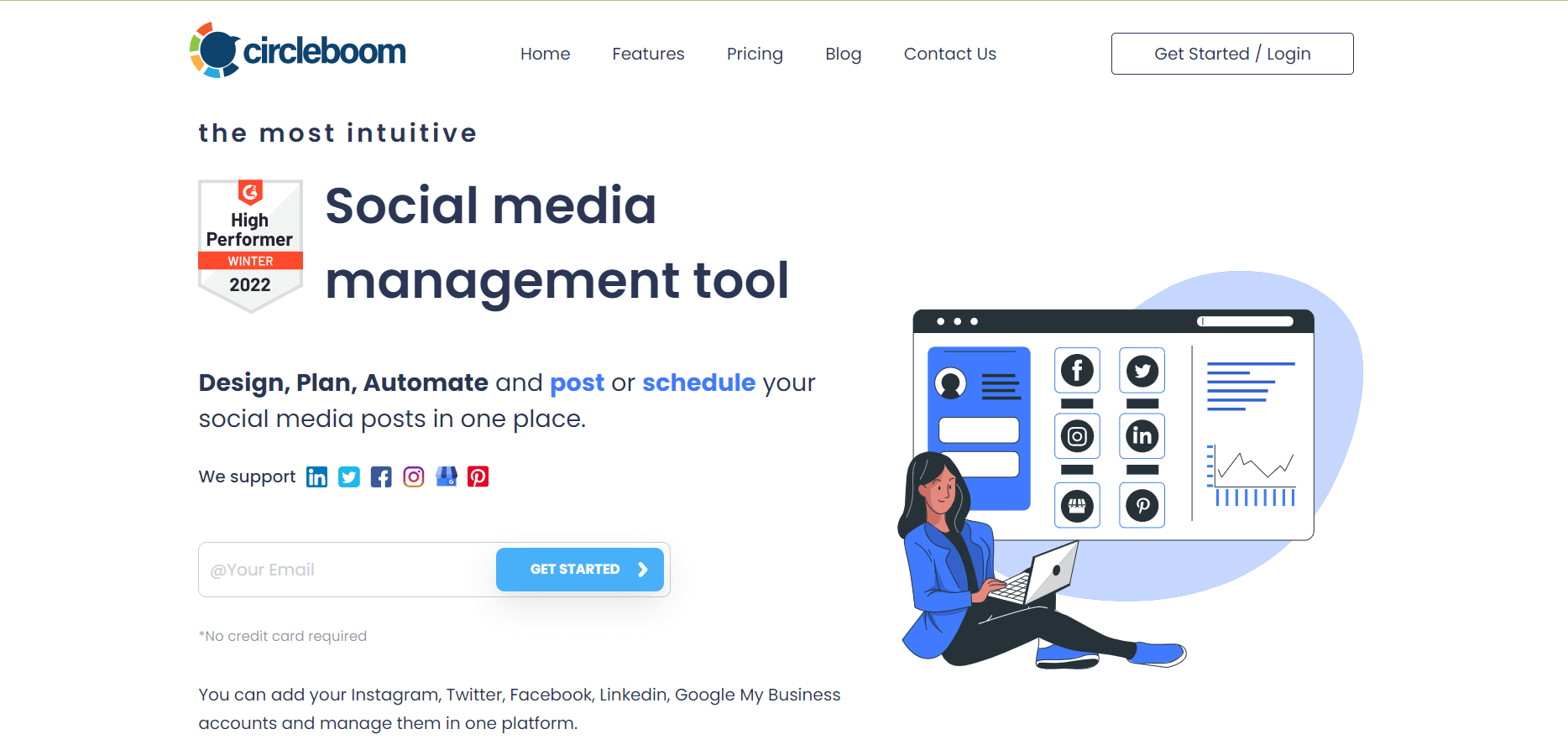
You can take advantage of fantastic content design and curation tools on Circleboom Publish. The built-in tools Canva, Unsplash, and Giphy, help you create and design your Facebook content with unique, ready-to-use Facebook post templates, handy photos, filters, effects, fonts, backgrounds, and many other kinds of design elements. You don’t worry about Facebook post sizes anymore because Circleboom provides users with the best and ready ones.
After you create, design, or upload your Facebook content, you can post them immediately or schedule them for a later, planned time. You can batch your posts and automate your Facebook images and texts on your Facebook Pages and Facebook Groups.
Additionally, you can use Queue Scheduling on Circleboom Publish. You can automatically post your Facebook content by setting time intervals and adding them to the queue. Then, you can send them continuously.
The best part comes now! You can connect multiple RSS Feeds to your multiple Facebook accounts. You can automatically post to Facebook from Blogger, WordPress, or other sources quickly. You can keep your Facebook accounts always fresh and posting while you are sleeping.
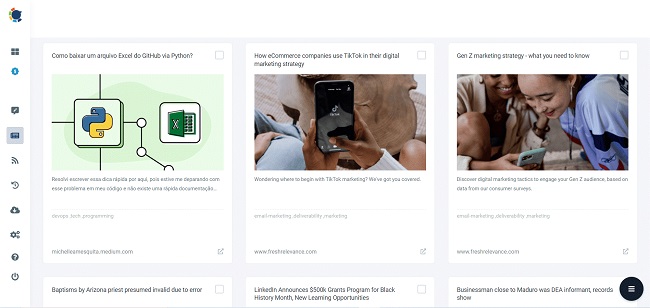
Last but not least, thanks to its “Discover Articles” feature, you can automatically post articles to Facebook Pages and Facebook Groups. You can find excellent articles from globally famous magazines and auto-share them with your Facebook audience.
Circleboom Publish also supports Twitter, Instagram, Pinterest, LinkedIn, and Google Business Profile. You can create, design, and automatically post to all these platforms on Circleboom.
2. The application of IFTTT to automatically post images and posts/pages on Facebook.
IFTTT is an abbreviation that stands for “If this then that”. It is a free online web based tool that lets you achieve more with your server. Here you are welcome to create applets which are triggered by the updates in different platforms, including Gmail, Facebook, Instagram, etc.
This method will bring multiple ways of connecting your WordPress site with Facebook to automatically share new WP posts on Facebook pages, to post new blogs appearing in WordPress also on Facebook page with images and more.
For the beginning, you need to go to https://ifttt.com/ and create an account, create New Applet /can be found in the upper right corner of the page/.
Then click on +this link to activate the wizard and choose service as WordPress to continue. After pressing Connect button a form will appear to be filled with relevant information about your site. Next comes the selection of triggers you can use.
Choose Any new post to go on. Click on +that link to choose the action service as Facebook. Select to post either in your personal profile or page, connect your FB account to IFTTT when FB asks for permission and choose the required action from the given boxes /Create a status message, Create a link post, upload a photo from URL/.
The last step is to create an action and that’s it.
3. The application of Hootsuite to automatically post images and posts/pages on Facebook.
Hootsuite is one of the sophisticated ways to auto share your WP content on social media networks, including, of course, Facebook.
It’s a truly convenient method not only to share your multimedia content, posts and pages, but also schedule their posting time throughout the day.
Visit hootsuite.com and create your account. In order to connect your site with this system, you need to install the plugin called Post to Social Media – WordPress to Hootsuite
Activate and configure this plugin /Settings, Hootsuite authentication, Access Token.
You’ll find a callback URL below Access Token field. Copy this URL since you are going to fill it together with other details when visiting hootsuite.com developers to create an app.
Simply click the button Create an app and the relevant form will appear to be filled. After creating an application, Hootsuite will create an app for you and provide you with API keys and access token. Copy and paste this token to your WP plugin settings page and save.
Now your WP website is connected to Hootsuite. All you need to do is to configure settings the way you wish your WP posts to be shared on FB. Click on the available Facebook account in the provided posts or page tabs and use Enable account option.
Furthermore, you are free to play with more options to automatically add post title, description and image on Facebook.
4. The application of WordPress plugins to automatically post images and posts/pages on Facebook.
In case you feel that both methods described below will be time consuming or beyond your strengths, the third method to add your site images and posts on FB via plugins will be more comfortable for you.
There is an avalanche of relevant social plugins ready to make auto sharing of your web content. All you need to do is to dig into the library of WordPress plugins and find the one matching your needs.
In order to help you get your head around what is offered, we can enumerate some of the top rated plugins available for now. Among them are:
Facebook Auto Publish
https://wordpress.org/plugins/facebook-auto-publish/
Facebook Auto Post
https://wordpress.org/plugins/accesspress-facebook-auto-post/
Jetpack Publicize
https://jetpack.com/support/publicize/
Social Networks Auto Poster
https://wordpress.org/plugins/social-networks-auto-poster-facebook-twitter-g/
2 Thoughts on “How to Automatically Post Images on Facebook Posts/Pages”
Readers exploring this topic frequently raise two practical questions. First, can you auto post instagram photos to facebook simultaneously? Yes — tools like Make.com support cross-platform publishing in a single workflow. Second, does image quality degrade through automation? In practice, properly configured pipelines preserve original resolution without compression issues.
How Do I Stop Auto Upload Photos in Facebook?
If automation is uploading more than intended, knowing how to turn it off is just as valuable as setting it up. Disabling auto-uploads prevents unwanted content from appearing — especially useful before you bulk upload photos to facebook page campaigns go live and need a final review first.
To stop automatic photo uploads, navigate to Settings & Privacy → Settings → Media and toggle off any active sync options. For third-party tools, revoke app permissions under Settings → Apps and Websites.
Before diving into privacy controls next, it’s worth asking: who actually sees those uploaded photos?
Can You Add Photos to Facebook Without Notifying Everyone?
Yes — audience targeting settings let you upload photos quietly. Before posting, set the privacy toggle to “Only Me” to add images without triggering friend notifications. Once ready, switch visibility to your preferred audience. This simple step keeps your drafts private until you’re ready to publish.
How Do I Change the Default Post in Facebook?
Adjusting Facebook’s default post settings shapes how every new post appears — including audience visibility and format. Navigate to Settings & Privacy → Settings → Privacy → Your Activity to update the default audience from “Friends” to your preferred option. This small change affects all future posts automatically.
If broader automation is your goal, third-party tools open even more possibilities.
How to Auto-Post Facebook Posts (Without Using FB Tools)
Third-party automation platforms offer a powerful alternative when Facebook’s native tools fall short. Services like Make.com let you build custom workflows that push images directly to your Page — no manual uploading required. This approach gives you far more flexibility over timing, image selection, and cross-platform publishing.
When You Post to Instagram, Do You Auto-Post to Facebook?
Cross-posting from Instagram to Facebook is a common time-saver — but it comes with trade-offs worth understanding. Linking accounts through meta’s native settings pushes Instagram content directly to a connected Facebook Page or profile, but formatting and caption control are limited. For tighter control over how images appear on both platforms simultaneously, automation workflows like those discussed in the Make Community offer a more flexible approach. The right choice depends on whether consistency or convenience matters most to your strategy — and the next section breaks down the best tools to help you decide.
Best Tools & Strategies for Social Media Post Automation
Choosing the right automation tool makes all the difference between a seamless content pipeline and a frustrating workaround. Third-party scheduling platforms remain the gold standard for image automation at scale. For anyone looking to go deeper on setup, this step-by-step video walkthrough covers building an automated Facebook image poster in under 20 minutes. The right tool saves time — the right strategy makes that time compound. Next, we’ll look at how to control exactly when those images go out.
How to Make a Page Post an Image Every N Minutes?
Interval-based posting — publishing an image every set number of minutes — is a step beyond basic scheduling. Automation platforms like Make.com handle this through scheduled triggers combined with a rotating image source, such as a Google Sheet or cloud storage folder. Set the interval, connect your image library, and the workflow cycles through automatically.
If budget is a concern, free-tier options can cover surprisingly solid use cases — which is exactly what the next section explores.
What Are Some Ways to Schedule Posts for Free?
Free scheduling options do exist — and they’re more capable than most people expect. meta business suite is the most straightforward starting point, offering native post scheduling for Facebook Pages at no cost. Beyond that, automation platforms like those covered earlier often include generous free tiers that support basic image posting workflows.
Free scheduling approaches worth exploring:
- Meta business suite — schedule image posts directly, no third-party tools required
- Automation platform free tiers — limited scenarios/operations per month, but sufficient for low-volume pages
- Open-source or self-hosted tools — steeper setup curve, but no subscription fees
The catch? Free tiers typically cap monthly operations or restrict advanced features like dynamic image selection. For most small pages, though, free tools handle the fundamentals surprisingly well. As volume grows and posting frequency increases — say, publishing a new photo every hour — free plan limits tend to become the bottleneck, which is exactly where the next level of automation comes in.
How to Automatically Post a New Photo Every Hour
Hourly posting takes the interval-based logic covered earlier and pushes it to its most demanding frequency. The core setup remains the same — a trigger fires on a schedule, pulls an image from a source folder or queue, and publishes it automatically. What changes is the cadence: set your scheduler interval to 60 minutes, and your page stays consistently active without any manual effort.
Consistent visual output, even at hourly frequency, is fully achievable when your image queue and automation trigger are properly aligned.
One practical approach is maintaining a pre-loaded Google Drive folder as your image bank, letting the automation cycle through each file sequentially. Just keep the folder stocked ahead of demand.
That said, hourly posting suits specific use cases — product showcases, event countdowns — rather than everyday brand pages, where audience fatigue becomes a real caveat worth considering. Beyond static feed posts, automation opens up another layer entirely — which leads naturally into how Stories fit into the picture.
How Do You Automatically Share Your Instagram Stories and Posts to Facebook?
Cross-posting between Instagram and Facebook remains one of the most practical time-savers available. Linking both accounts through meta business suite activates automatic sharing — Instagram posts and Stories can mirror directly to your Facebook Page without any extra steps after the initial setup.
This built-in connection is the simplest bridge between both platforms — and it costs nothing to use.
AI Automation on Facebook
AI is reshaping how marketers handle Facebook content. Rather than manually scheduling every post, AI-driven automation can generate captions, select images, and trigger posts based on performance data — all without constant oversight. In practice, combining AI tools with workflow platforms creates a genuinely hands-free publishing pipeline that scales effortlessly.
How to Automatically Post on Instagram
Automating Instagram follows a similar logic to what’s already been covered with Facebook. Connect your Instagram Business account to a scheduling or automation platform, set your image source, and define your posting trigger. Consistent posting schedules on Instagram can meaningfully improve reach and engagement over time. From here, the natural question becomes: can you apply the same automation approach directly on Facebook itself?
Is There a Way to Automatically Post on Facebook?
Yes — and it’s more accessible than most people expect. Whether you’re managing a brand page or a personal profile, automated Facebook posting is well within reach using scheduling platforms, workflow automation tools, or native Meta tools. The approach you choose depends on your volume, budget, and technical comfort level. As covered earlier with both Facebook and Instagram automation, connecting your accounts to the right platform is the critical first step.
One practical consideration: automation doesn’t mean “set it and forget it.” Monitoring engagement on auto-published posts still matters.
How Do I Stop Auto Upload Photos on Facebook?
If your phone is syncing photos to Facebook without your input, it’s likely due to camera roll sync being enabled in the Facebook app settings. To turn it off, navigate to the app’s Settings & Privacy, then Settings, and look for the Media or Photos section to disable automatic uploads.
Controlling what gets shared — and when — is just as important as automating posts in the first place.
This also ties into broader privacy considerations worth keeping in mind as you move forward.
Can You Add Photos to Facebook Without Notifying Everyone?
Yes — Facebook gives you control over who sees a post before you publish it. By setting the audience selector to “Only Me” before uploading, you can add photos to your timeline without triggering any notifications to friends or followers. Once you’re ready to share, simply change the visibility setting. This makes quiet, staged posting entirely possible.
How Do I Change the Default Post Setting in Facebook?
Facebook’s default post audience is set during your initial account setup, but you can update it anytime. Head to Settings & Privacy → Settings → Privacy → Your Activity, then adjust “Who can see your future posts?” This controls what audience every new post defaults to — Friends, Public, or Only Me.
Changing this setting won’t affect older posts, so keep that in mind. For more granular control, third-party automation tools (covered next) let you schedule and publish posts with custom audience settings built right into the workflow.
How to Auto-Post Facebook Posts (Without Using FB Tools)
Facebook’s native scheduler works, but third-party automation platforms give you far greater flexibility. Tools like Make.com let you build custom workflows that trigger image posts automatically — no manual uploads required. Automation platforms essentially act as a bridge between your content sources and Facebook’s API, handling timing, formatting, and publishing without you touching the platform.
If Instagram cross-posting is your next consideration, that workflow follows similar logic — which we’ll cover shortly.
When You Post to Instagram, Do You Auto-Post to Facebook?
Cross-posting from Instagram to Facebook sounds convenient, but it comes with trade-offs. Meta’s built-in sharing option pushes content automatically, yet the formatting often suffers — captions truncate, hashtags clutter, and timing becomes unpredictable. For polished, consistent results across both platforms, a dedicated automation workflow typically outperforms the native toggle. The next section breaks down the best tools to make that happen seamlessly.
Best Tools & Strategies for Social Media Post Automation?
Choosing the right automation approach comes down to your workflow. Scenario-based triggers, scheduled queues, and template-driven pipelines each serve different needs. In practice, combining a cloud automation platform with a structured content calendar delivers the most consistent results — keeping your Facebook page active without manual effort every single day.
How to Make a Page Post an Image Every N Minutes?
Interval-based image posting is a step up from simple scheduling. Instead of fixed timestamps, you define a frequency — every 30, 60, or 90 minutes — and let automation handle the rest. In practice, this works best when you have a pre-built image queue feeding into a loop-based workflow trigger.
Consistent, timed posting keeps your page active without manual effort — a clear win for engagement-focused page managers.
This approach pairs naturally with the automation strategies covered earlier. The next logical question becomes: does this work the same way for Facebook Pages specifically?
Is It Possible to Automatically Post on Facebook Pages?
Yes — automated posting to Facebook Pages is fully supported through the Facebook Graph API and no-code automation platforms. Pages have broader API access than personal profiles, making them the preferred target for any image automation workflow you’ve already built out.
What Are Some Ways to Schedule Posts for Free?
Free scheduling options are more accessible than many page managers realize. Facebook’s native scheduling tool — built directly into meta business suite — lets you queue image posts at no cost. No-code automation tools also offer generous free tiers, making interval-based workflows achievable without a paid subscription. If you’re ready to go beyond basic scheduling into true hourly automation, the next section breaks that down step by step.
How to Automatically Post a New Photo Every Hour
For high-frequency posting, scheduling automation tools let you set a recurring trigger — every hour, every few hours, or on any custom interval. Pair a rotating image library (stored in Google Drive or Dropbox) with an automation workflow, and fresh photos publish to your Page continuously without manual input. This sets the stage for extending the same logic across Instagram Stories next.
How to Automatically Share Your Instagram Stories and Posts to Facebook
Cross-platform automation is the natural next step once your Facebook image posting workflow is running smoothly. Connecting Instagram to Facebook through meta’s native settings lets stories and feed posts mirror automatically — no third-party tool required.
Consistent, automated cross-posting is one of the highest-leverage habits a page manager can build. Set it up once, and every visual you publish reaches both audiences instantly.
Take control of your content strategy today — start with one automated workflow and expand from there.
Key Takeaways
- Meta business suite — schedule image posts directly, no third-party tools required
- Automation platform free tiers — limited scenarios/operations per month, but sufficient for low-volume pages
- Open-source or self-hosted tools — steeper setup curve, but no subscription fees
- Automate facebook image sharing
- Facebook post scheduler for images
 Sonal S Sinha is a digital architect and seasoned developer with over 16 years of experience in the web world. As the founder of a premier design and marketing agency, he has helped thousands of startups and small businesses define their identity through custom WordPress theme development.
A self proclaimed WooCommerce enthusiast, Sonal is dedicated to making professional design accessible to everyone. He regularly shares his expertise and a curated selection of free WordPress themes to help new creators launch with confidence. Follow Sonal for a consistent masterclass in scaling your online presence.


Buffer is no longer accepting new development applications. They hadn’t since 2019 based on the website you send people to.
Thanks for letting us know. Will update the post and add something else.