
A contact form is an essential part of almost every WordPress website. It gives visitors a simple way to ask questions, request information, contact your business, submit applications, request quotes, or send feedback directly from your website.
Table of Contents
In the past, creating a contact form often meant writing custom HTML, PHP, and JavaScript code or relying on a developer. Today, you can create professional WordPress contact forms using a drag-and-drop form builder without writing a single line of code.
But a modern contact form can do much more than collect a name, email address, and message.
You can create forms with file uploads, conditional questions, validation rules, date and time fields, calculations, product quantities, custom payment amounts, payment gateways, spam protection, email notifications, analytics, and submission management.
There are many premium WordPress contact form plugins available, but many charge users for advanced functionality through paid plans.
SKT Forms takes a different approach by providing its powerful form-building and payment capabilities completely free.
In this guide, we’ll explain how to create contact forms for your WordPress website, what features to look for in a form builder, how SKT Forms compares with premium form plugins, and how to create and publish your own form step by step.
Why Should You Add a Contact Form to Your WordPress Website?
Your website visitors need an easy way to communicate with you.
Simply publishing an email address can work, but a contact form gives you much more control over the information you receive.
A contact form can help you:
- Collect customer inquiries
- Generate leads
- Receive service requests
- Collect customer feedback
- Accept applications
- Receive support requests
- Collect project details
- Request quotes
- Accept file attachments
- Schedule appointments
- Collect payments
- Organize submitted information
For example, a web design company could create a contact form that asks for the visitor’s name, email address, phone number, required service, estimated budget, project description, and supporting documents.
Instead of receiving an incomplete email, the business receives structured information that is easier to understand and manage.
What Should You Look for in a WordPress Contact Form Plugin?
Before choosing a WordPress form builder, consider what your website actually needs.
A useful contact form plugin should make it easy to:
- Create forms without coding
- Add different field types
- Make fields required
- Validate visitor information
- Create conditional questions
- Upload files
- Protect forms from spam
- Send email notifications
- Manage submissions
- Export submitted data
- Track form performance
- Accept payments when required
- Customize the form experience
- Create different types of business forms
Some premium plugins provide these features, but advanced functionality may be restricted to specific paid plans.
If you need advanced functionality, it is therefore important to compare the actual features included with the price you pay.
No. 1 Free Contact Forms for Your Website with a Drag-and-Drop Form Builder – Compare with Premium Contact Form Plugins
We are choosing SKT Forms to create our contact form because it is the best free drag-and-drop builder for your site. It is very user-friendly, and this plugin does not have a paid version because SKT Forms already gives you all the premium features completely free.
SKT Forms – Form Builder for WordPress
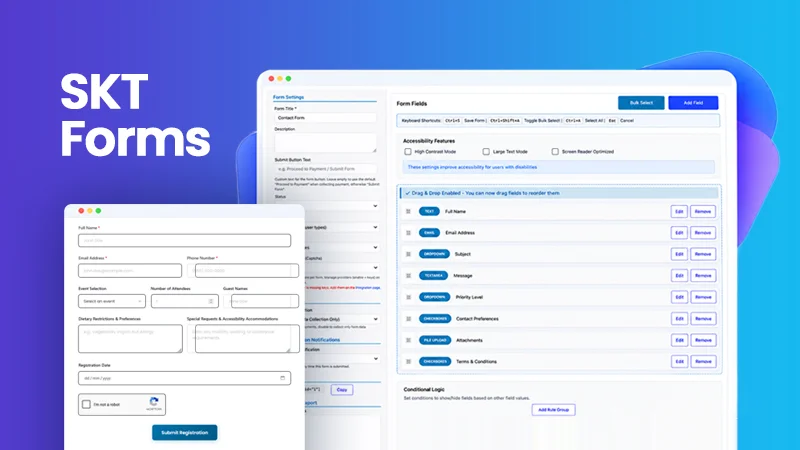
Tired of spending money each year for advanced contact form plugins? Finding a free WordPress form builder plugin that actually provides you with premium features is very hard. Most companies hide their best options behind expensive subscriptions.
We built SKT Forms to change that. We offer you a completely free & secure tool, with the same features other brands will charge you a lot of money for.
Build a simple contact section or a complex multi-step booking page with a live price calculator in no time. You can easily set up with our drag and drop editor. Build pages in minutes without writing a single line of code.
Premium Contact Form Plugins vs. SKT Forms
There are many established premium WordPress form plugins with extensive features, integrations, templates, and automation.
For example, the supplied WPForms pricing information lists four paid plans, with normal annual pricing ranging from $99 for Basic to $599 for Elite. Feature availability varies between those plans.
Premium plugins can certainly be useful when you need a particular integration or specialized feature.
However, there is an important difference to consider:
However, there is an important difference to consider:
Many premium form plugins charge for advanced functionality, while SKT Forms provides its documented advanced form-building and payment capabilities completely free.
What Do Premium Contact Form Plugins Provide?
Premium form builders can offer features such as:
- Advanced form fields
- Form templates
- Conditional logic
- File uploads
- Multi-page forms
- Form styling
- Payment integrations
- Marketing integrations
- CRM integrations
- Automation
- Advanced analytics
- Specialized workflows
The supplied WPForms information, for example, lists features including more than 2,100 form templates, entry management, conditional logic, advanced fields, file uploads, form layouts, multi-page forms, spam protection, and more.
Higher-tier plans can also include features such as surveys and polls, Google Calendar, Google Drive, Google Sheets, signatures, conversational forms, lead forms, save and resume, calculations, Zapier, webhooks, entry automation, geolocation, and form abandonment.
These can be valuable features, but users need to purchase the appropriate plan to access the functionality they require.
What Makes SKT Forms Different?
SKT Forms provides a different model.
Instead of requiring you to purchase a premium plan to access advanced form functionality, SKT Forms provides its documented form-building and payment features completely free.
You can create forms with:
- 20 field types
- Drag-and-drop form building
- Conditional logic
- Cross-field validation
- File uploads
- Calculations
- Product items
- Amount selection
- Custom payment amounts
- Multiple payment gateways
- Email notifications
- Spam protection
- Transaction management
- Analytics
- CSV, JSON, and Excel exports
- Accessibility options
This means you can start with a simple contact form and continue using the same form builder when you need more advanced functionality.
Premium Contact Form Plugins vs. SKT Forms: Quick Comparison
| Feature | Premium Contact Form Plugins | SKT Forms |
|---|---|---|
| Drag-and-drop builder | Yes | Yes |
| Basic contact forms | Yes | Yes |
| Advanced fields | Often plan-dependent | Free |
| Conditional logic | Often plan-dependent | Free |
| File uploads | Often plan-dependent | Free |
| Calculations | Often plan-dependent | Free |
| Payment collection | Varies | Free |
| Payment gateways | Varies | Free |
| Email notifications | Yes | Free |
| Spam protection | Yes | Free |
| Submission management | Yes | Free |
| Analytics | Varies | Free |
| CSV/JSON/Excel exports | Varies | Free |
| Accessibility options | Varies | Free |
| Premium subscription required for documented advanced features | Often | No |
The key point is not that premium plugins are bad. They can be excellent products for users who specifically need their ecosystems and integrations.
The difference is that SKT Forms gives you powerful form-building functionality without charging you for the advanced features described above.
How to Install SKT Forms Plugin for WordPress Website?
Before creating your contact form, install and activate SKT Forms.
There are two installation methods.
Method 1: Install SKT Forms Through WordPress Admin
This is the recommended installation method.
- Download the SKT Forms plugin ZIP file.
- Log in to your WordPress dashboard.
- Go to Plugins → Add New.
- Click Upload Plugin.
- Select the SKT Forms ZIP file.
- Click Install Now.
- Click Activate Plugin.
Once activated, SKT Forms adds its own menu to the WordPress admin sidebar.
Method 2: Manual Installation
You can also install SKT Forms manually.
- Extract the plugin files.
- Upload them to: /wp-content/plugins/skt-forms/
- Log in to WordPress.
- Go to Plugins.
- Locate SKT Forms.
- Activate the plugin.
SKT Forms Requirements
SKT Forms requires:
- WordPress 6.1 or higher
- PHP 7.2 or higher
- MySQL 5.6 or higher
An SSL certificate is recommended for websites processing live payments.
Understanding the SKT Forms Dashboard
After activation, SKT Forms provides a dedicated admin menu.
It includes:
- Dashboard
- Forms
- Transactions
- Analytics
- Email Notifications
- Payments
- Integration
- Help
Dashboard
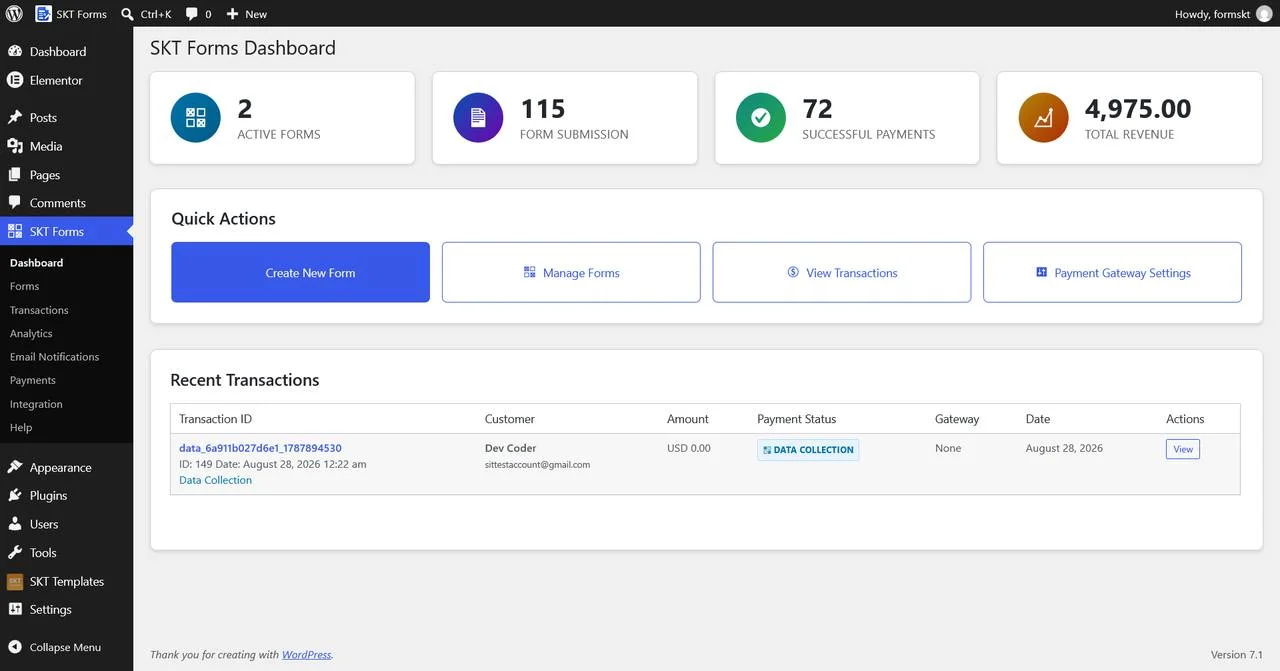
The Dashboard provides an overview of your forms and transactions.
It displays:
Active Forms
The number of forms currently set to Active.
Form Submission
The total number of transactions recorded across forms, including data-collection submissions and payment transactions.
Successful Payments
The number of successful payment transactions.
Total Revenue
The total value of successful payments.
The Dashboard also includes Quick Actions for creating forms, managing forms, viewing transactions, and configuring payment gateways.
A Recent Transactions table displays the latest submissions and their statuses.
How to Create Contact Forms in WordPress Website?
Now let’s create a contact form using SKT Forms.
Go to:
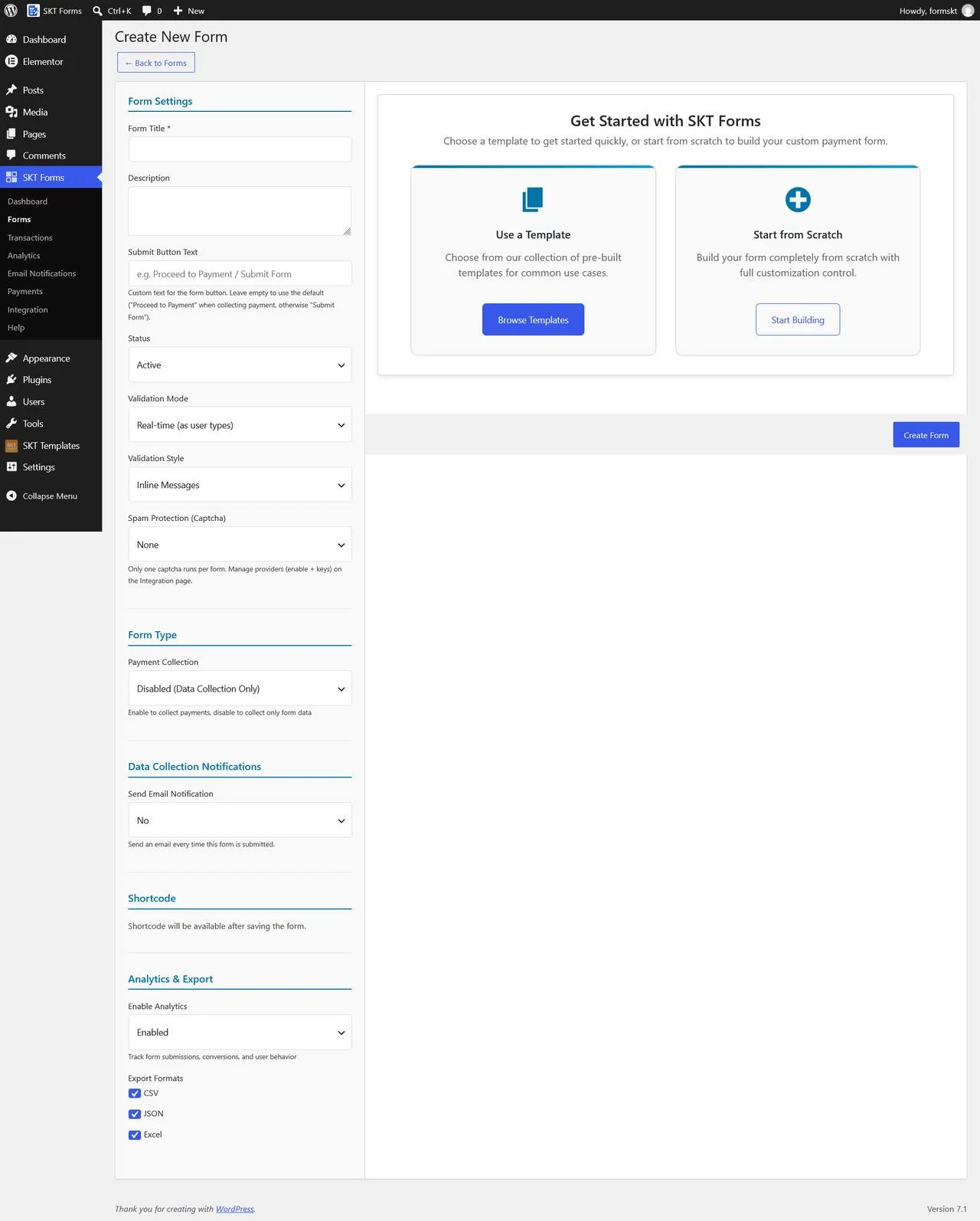
SKT Forms → Forms → Add New
You can either start with a template or create your form from scratch.
Step 1: Add Your Form Title
Enter a name in the Form Title field.
You can also enter an optional description explaining the purpose of the form.
Choose:
- Use a Template
- Start from Scratch
- Then click Create Form.
A new form starts as a data-collection form. You can enable payment collection later if required.
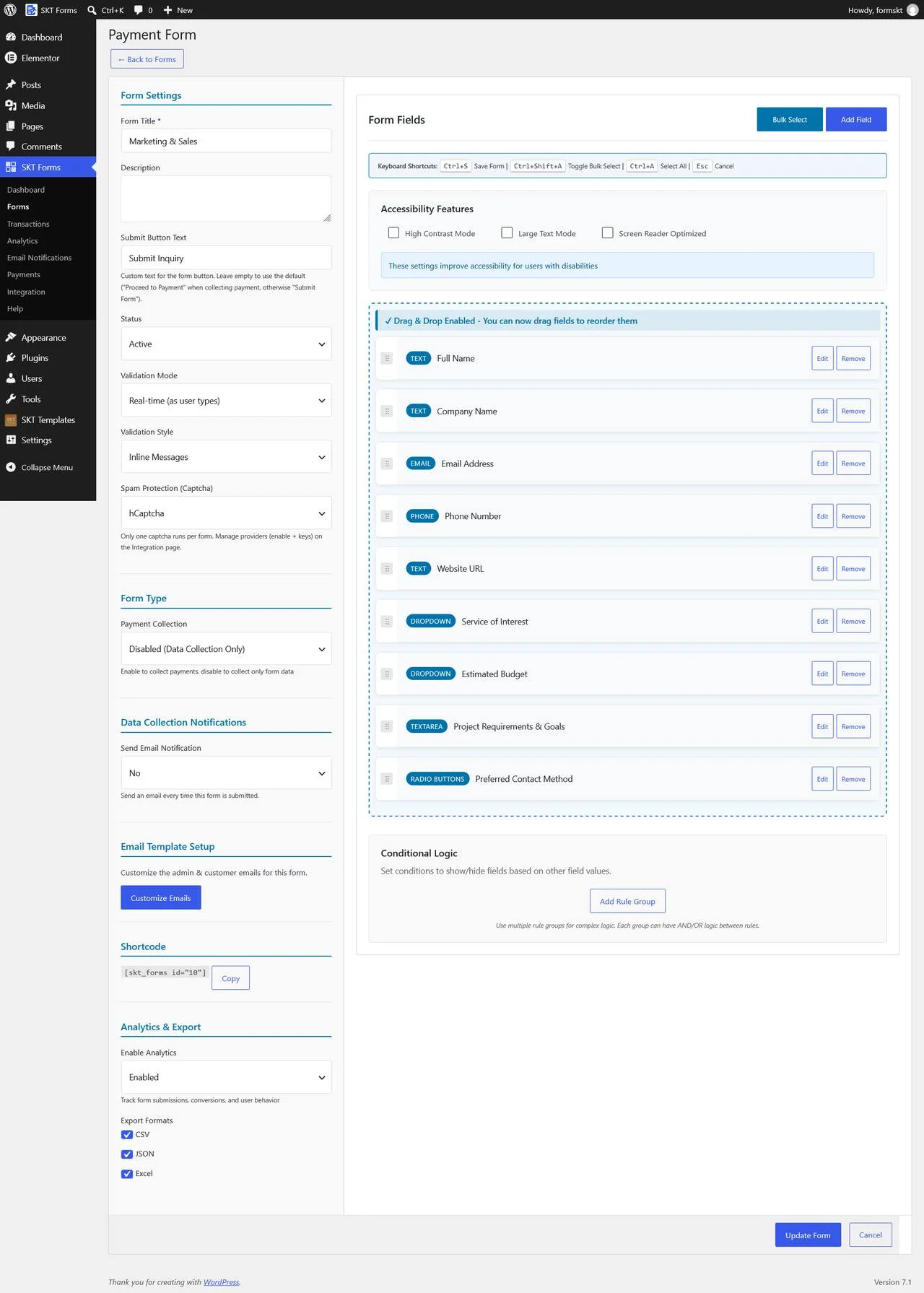
Step 2: Add Contact Form Fields
For a basic contact form, you will usually need:
- Name
- Phone
- Message
SKT Forms provides Quick Add buttons for Name, Email, Phone, and Message.
You can also select Add Field to access all available field types.
20 Field Types Available in SKT Forms
SKT Forms includes 20 field types that allow you to create everything from simple contact forms to advanced payment and data-collection forms.
1. Text
Use Text for short, single-line information such as:
- Full name
- Company name
- Job title
- Subject
- Reference number
2. Email
Use Email to collect email addresses.
It includes automatic email-format validation.
Payment forms also require an Email field.
3. Phone
Use Phone to collect telephone or mobile numbers.
You can combine it with phone validation when you need to enforce a valid phone format.
4. Number
Use Number for numeric information such as:
- Age
- Quantity
- Headcount
- Reference number
You can also apply minimum and maximum value rules.
5. Textarea
Use Textarea for longer responses such as:
- Messages
- Comments
- Project descriptions
- Special instructions
6. Dropdown
A Dropdown allows visitors to select one option from a list.
It is useful for:
- Service selection
- Department
- Country
- Product type
7. Radio Buttons
Radio Buttons allow visitors to select one option while displaying all available choices.
8. Checkboxes
Checkboxes allow visitors to select multiple options.
They can be useful for:
- Services
- Interests
- Add-ons
- Newsletter preferences
9. Date Picker
Use Date Picker for dates such as:
- Appointments
- Events
- Deadlines
- Date of birth
The date format is DD-MM-YYYY.
10. Time Picker
Use Time Picker to collect a preferred time.
The Time Picker uses a 24-hour format.
11. File Upload
Allow visitors to upload:
- Resumes
- Documents
- Images
- ID proof
- Project files
You can define allowed file extensions and maximum file size.
12. Address
The Address field collects structured address information.
Available sub-fields include:
- Street Address
- City
- State/Province
- ZIP/Postal Code
- Country
13. Rating
Use Rating to collect feedback or satisfaction scores.
You can choose:
- 5 stars
- 10 stars
14. Section Divider
Use Section Divider to organize long forms into sections.
It is a layout element rather than an input field.
Available styles include:
- Simple Divider
- Boxed Section
- Card Style
15. Amount Selection
Use Amount Selection when visitors need to select from predefined payment amounts.
For example:
- Basic — 500
- Standard — 1,000
- Premium — 1,500
16. Custom Amount
Custom Amount allows visitors to enter the amount they want to pay.
This can be useful for:
- Donations
- Custom deposits
- Flexible payments
17. Calculation
Calculation automatically calculates a value based on other fields.
It can be used for:
- Tax
- Shipping
- Delivery fees
- BMI
- Scores
- Custom totals
You can use field IDs in formulas and choose whether the calculated value should be added to the payment total.
18. Product Item
Product Item creates an order line containing:
- Quantity
- Unit price
- Line total
You can also determine whether the visitor can edit the price.
19. Slider
Slider lets visitors select a numeric value within a defined range.
You can configure:
- Minimum value
- Maximum value
- Step value
20. HTML / Custom Content
Use HTML / Custom Content to add:
- Instructions
- Disclaimers
- Custom formatting
- Images
- Videos
- Other content
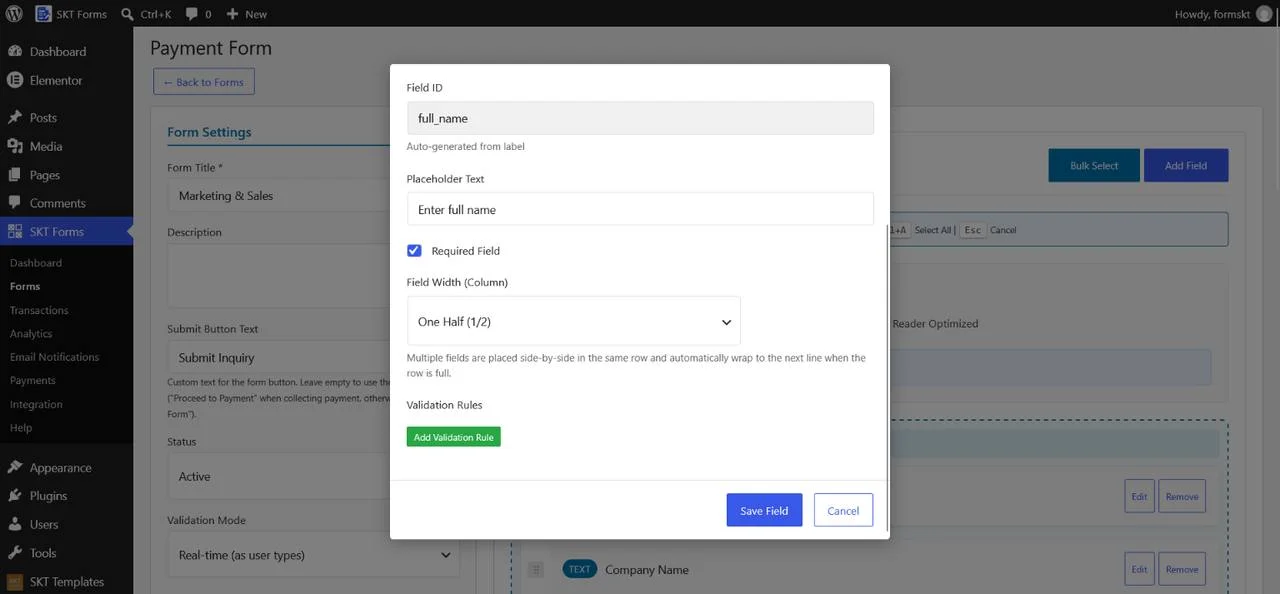
Step 3: Customize Your Contact Form Fields
Every field includes common settings.
Field Label
The visible name or question shown to the visitor.
Field ID
A unique identifier generated automatically by SKT Forms.
It is also used in email placeholders.
Placeholder Text
Displays a hint inside an empty field.
Required Field
Makes a field mandatory before submission.
Field Width
Control how much horizontal space the field occupies.
Available widths include:
- Full
- One Half
- One Third
- Two Thirds
- One Fourth
- Three Fourths
You can place fields side by side and they automatically wrap when the row is full.
Fields can also be reordered using drag and drop.
Step 4: Configure Contact Form Settings
The Form Settings sidebar controls how your form behaves.
General Settings
You can configure:
- Form Title
- Description
- Submit Button Text
- Status
Active forms are displayed on the front end.
Inactive forms remain hidden even if their shortcode is still present on a page.
The default submit button is:
- Submit Form for normal forms.
- Proceed to Payment for payment forms.
Validation Mode
You can choose when validation errors appear:
- Real-time
- On Field Blur
- On Form Submit
Validation Style
Choose how errors are displayed:
- Inline Messages
- Tooltip Messages
- Summary at Top
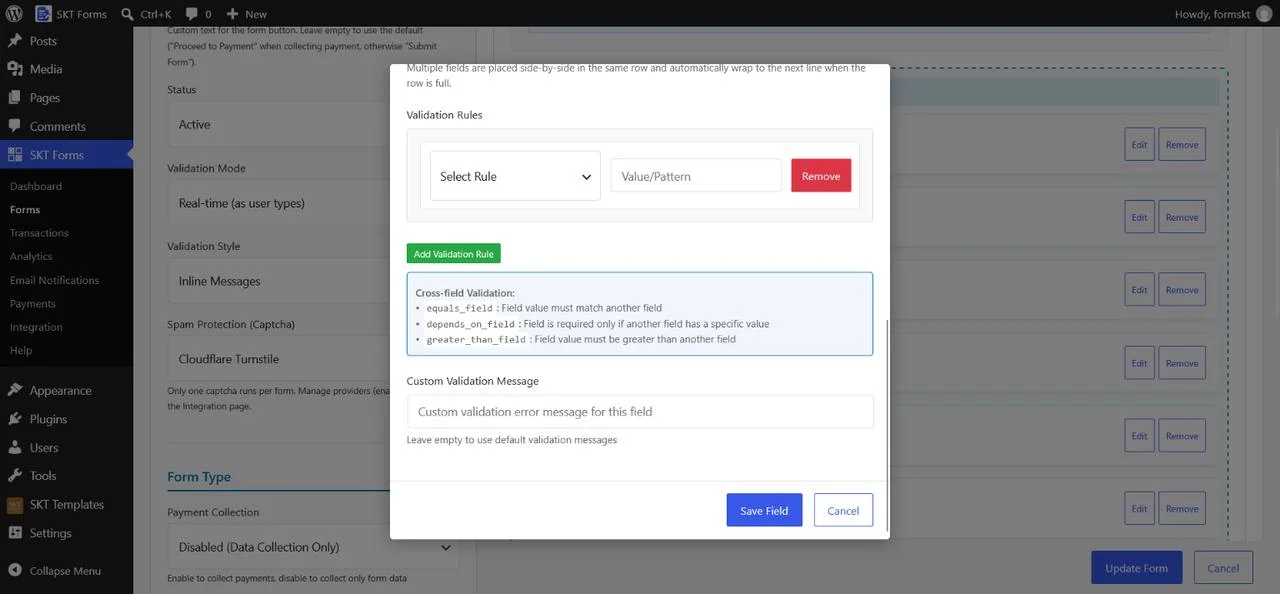
Step 5: Add Validation Rules
Validation makes sure visitors submit accurate information.
To add a validation rule:
- Open a field.
- Find Validation Rules.
- Click Add Validation Rule.
- Select a rule.
- Enter the required value or pattern.
- Add a custom message if required.
- Save the field.
Available rules include
- URL
- Phone
- Minimum Length
- Maximum Length
- Minimum Value
- Maximum Value
- Pattern
- File Type
- File Size
Cross-Field Validation
SKT Forms also supports validation that compares one field with another.
Available rules include:
- equals_field
- not_equals_field
- greater_than_field
- less_than_field
- depends_on_field
For example, use equals_field to ensure that Confirm Email matches Email.
Step 6: Add Conditional Logic
Conditional logic allows your form to dynamically respond to visitor choices.
For example:
If a visitor selects “Business,” show the Company Name field.
Create a Rule Group and choose whether the conditions should use:
AND — all conditions must be true.
OR — any condition can be true.
You can add multiple rules and rule groups.
Conditional Logic Actions
SKT Forms supports:
Show Field
Displays a hidden field when a condition is met.
Hide Field
Hides a field when a condition is met.
Field Editable
Allows the visitor to edit the target field.
Field Read-only
Prevents the visitor from editing the target field.
Conditional Logic Operators
SKT Forms supports 21 comparison operators:
- Equals
- Not Equals
- Contains
- Not Contains
- Greater Than
- Greater Than or Equal
- Less Than
- Less Than or Equal
- Between
- Not Between
- Starts With
- Ends With
- Regex Match
- In List
- Not In List
- Is Empty
- Is Not Empty
- Is Null
- Before Date
- After Date
- Within Days
Conditional logic is checked both in the browser and on the server when the form is submitted.
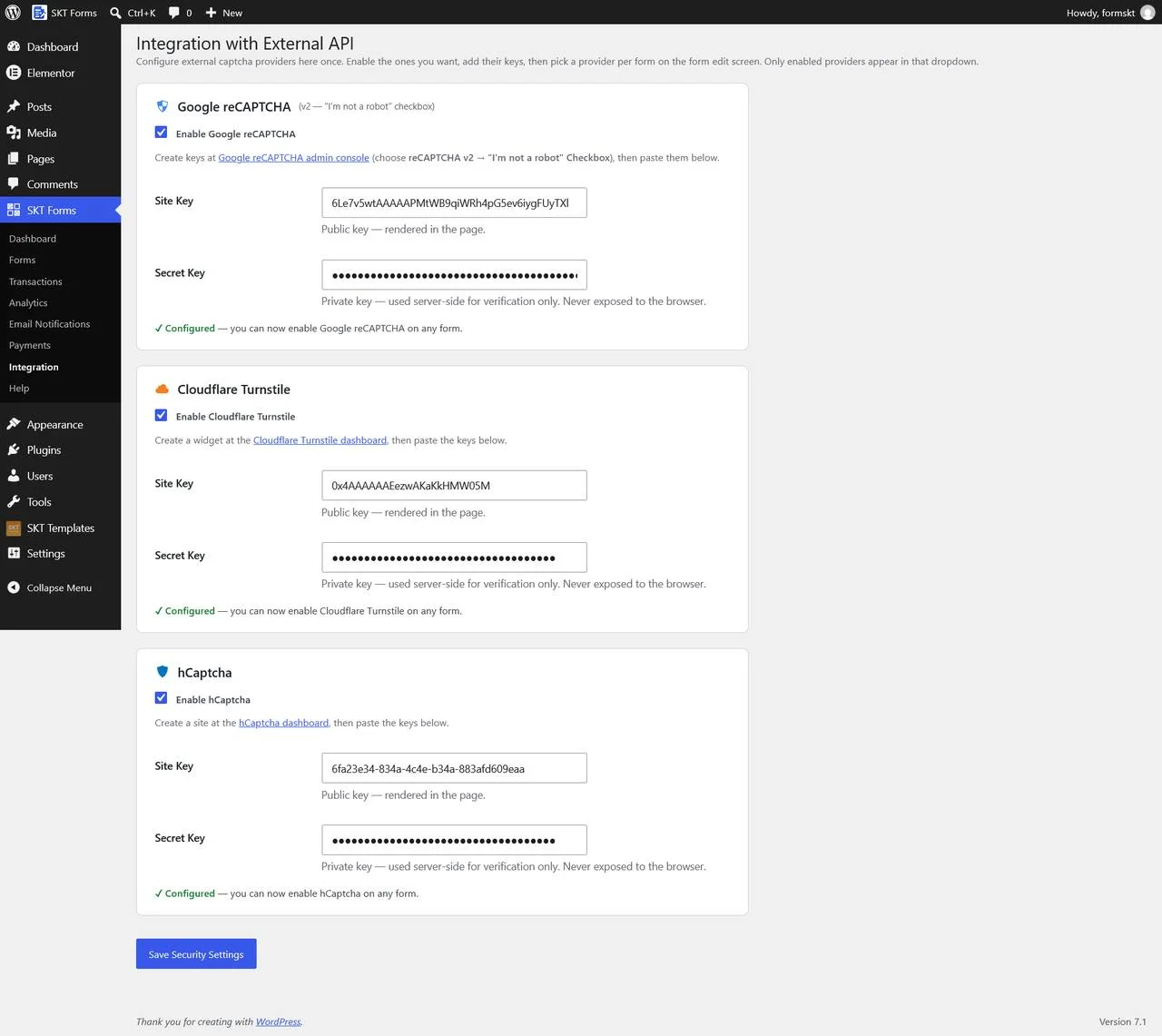
Step 7: Add Spam Protection
Spam can be a problem for publicly available contact forms.
SKT Forms provides four CAPTCHA options.
Math Captcha
Math Captcha is built into SKT Forms.
You can configure:
- Addition
- Subtraction
- Multiplication
- Mixed operations
- You can also select the difficulty.
Google reCAPTCHA
Configure your Site Key and Secret Key through the Integration page.
Cloudflare Turnstile
Configure the Site Key and Secret Key through Integration.
hCaptcha
Configure the Site Key and Secret Key through Integration.
Only one CAPTCHA runs on each form.
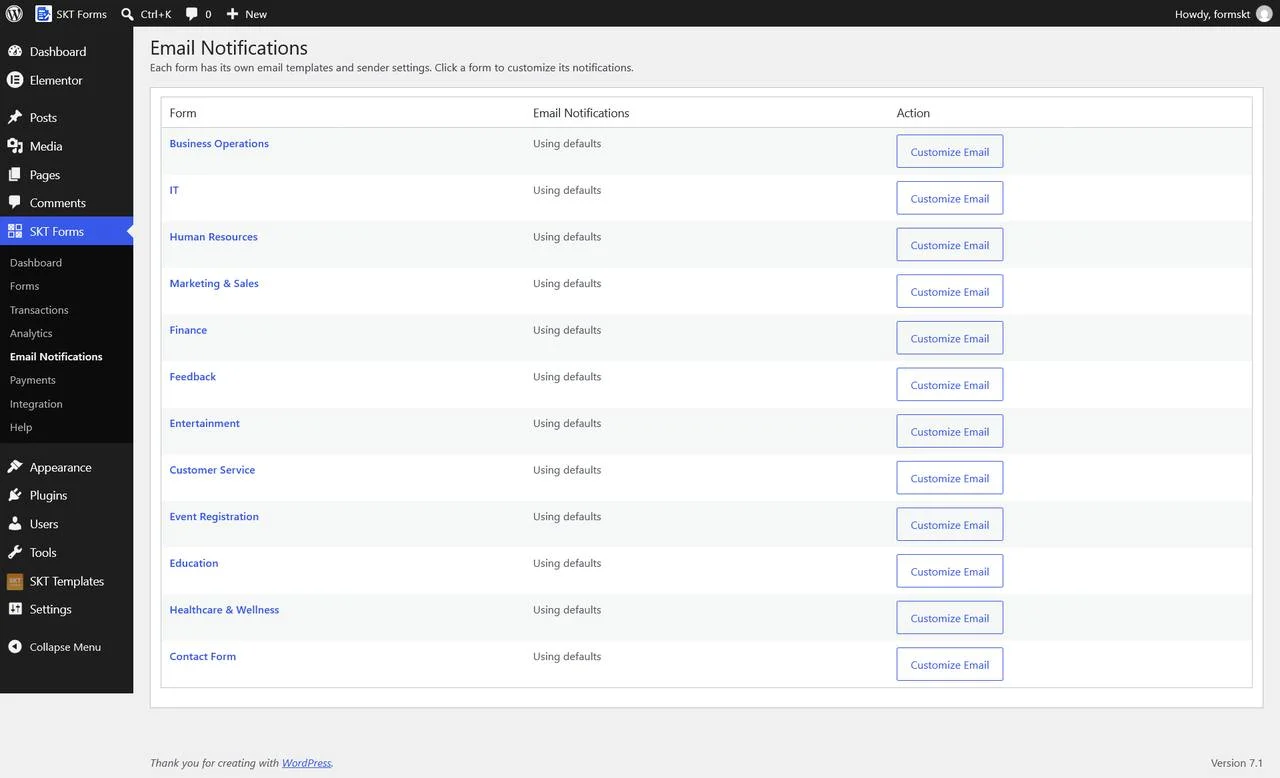
Step 8: Configure Email Notifications
Email notifications keep administrators and customers informed about form activity.
Go to:
| Notification | Recipient | Trigger |
|---|---|---|
| Payment Success | Customer | Successful payment |
| Payment Success | Admin | Successful payment |
| Payment Failed | Customer | Failed payment |
| Payment Failed | Admin | Failed payment |
| New Submission Notification | Admin | Non-payment submission |
| Submission Confirmation | Customer | Non-payment submission |
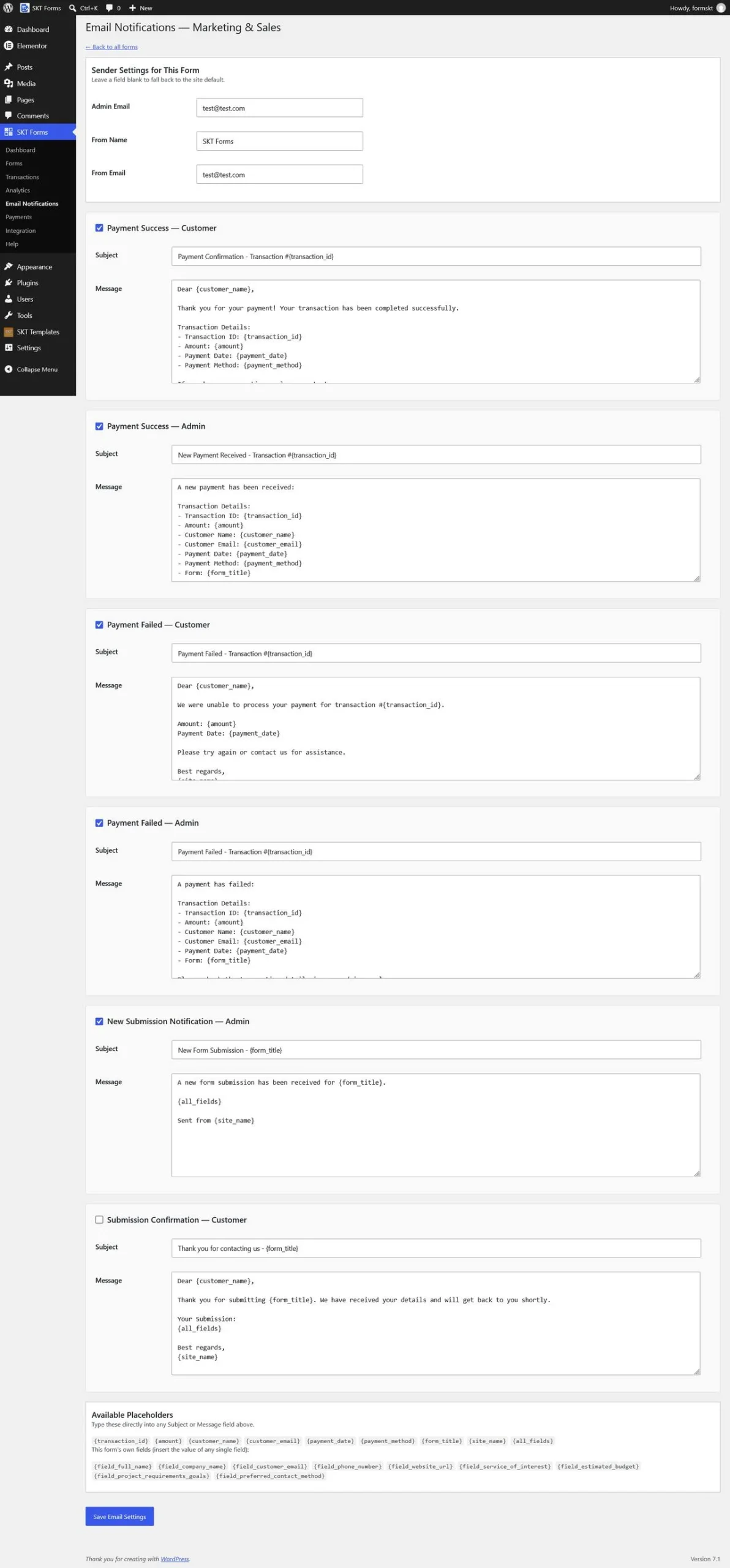
You can customize the subject and message for each notification.
Email Sender Settings
You can configure:
- Admin Email
- From Name
- From Email
Settings follow this order:
Per-form settings → Global settings → Site defaults
{transaction_id}
{amount}
{customer_name}
{customer_email}
{payment_date}
{payment_method}
{form_title}
{site_name}
{all_fields}
You can also reference an individual field:
{field_full_name}
Step 9: Publish Your Contact Form
Once your form is ready, save it.
SKT Forms generates a unique shortcode.
For example:
[skt_forms id="1"]
Copy the shortcode and paste it into your WordPress page, post, or widget area that supports shortcodes.
Your contact form will then appear wherever the shortcode is placed.
Step 10: Test Your Contact Form
Before publishing your contact form to visitors, test it yourself.
Check:
- Required fields
- Email validation
- Phone validation
- Conditional logic
CAPTCHA
- Email notifications
- File uploads
- Submission recording
- Mobile display
If your form accepts payments, test the complete payment process using Test Mode before switching to live payments.
Create Advanced Contact Forms With SKT Forms
A contact form doesn’t have to remain a simple Name, Email, and Message form.
You can use SKT Forms to create more advanced forms without paying for additional premium form functionality.
Create a Quote Request Form
A quote form could contain:
- Name
- Phone
- Service
- Budget
- Project details
- File Upload
Conditional logic can display additional questions depending on the selected service.
Create a Booking Form
- Use:
- Name
- Phone
- Date Picker
- Time Picker
- Service selection
- Additional requirements
Create a Feedback Form
- Use:
- Rating
- Radio Buttons
- Checkboxes
- Dropdown
- Textarea
- Create a Payment Form
Enable Payment Collection and use fields such as:
- Amount Selection
- Custom Amount
- Product Item
- Calculation
This lets you create forms that collect information and payments in the same workflow.
Accept Payments Through Your Contact Form
One of the most useful features of SKT Forms is payment collection.
A contact or inquiry form can be expanded into a payment form when required.
You can use payment forms for:
- Donations
- Paid bookings
- Registrations
- Service payments
- Product orders
- Deposits
- Custom payments
Payment Gateways Supported by SKT Forms
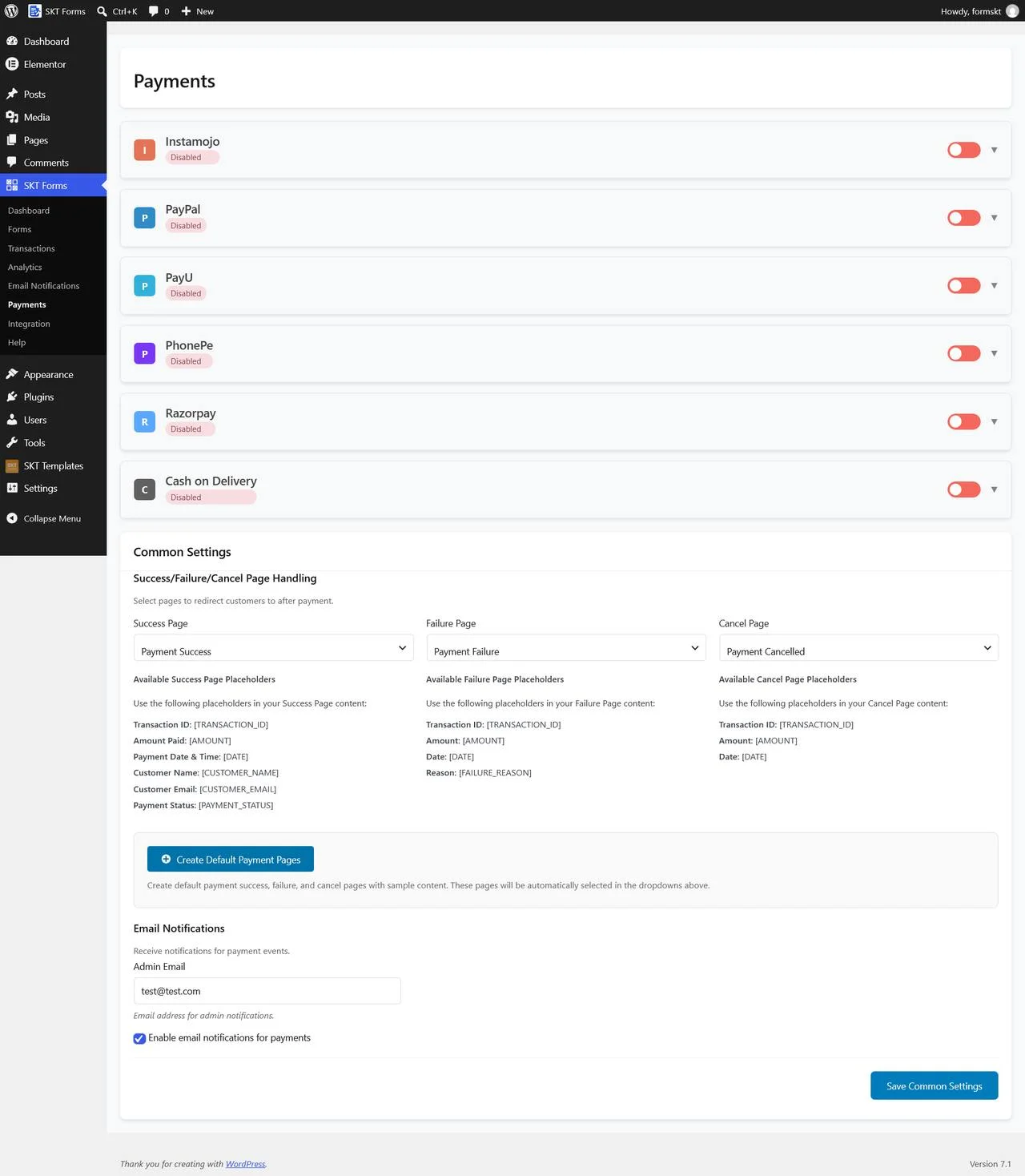
SKT Forms supports six payment options:
| Gateway | Currencies | Credentials Needed | Notes |
|---|---|---|---|
| Razorpay | INR, USD | Key ID + Key Secret (test & live), optional Webhook Secret | Choose Flash (instant payment link) or Normal (redirect to Razorpay Checkout) checkout method. |
| PayU | INR, USD | Merchant Key + Salt Key (test & live), optional Auth Header | Generates a secure, hash-signed payment form for checkout. |
| PayPal | ~90 currencies incl. USD, EUR, GBP, INR | Client ID + Client Secret (test & live) | Renders PayPal’s own Buttons widget on the form for checkout. |
| PhonePe | INR | OAuth Client ID + Client Secret + Client Version (test & live) | Uses PhonePe’s SDK v2 OAuth token flow. |
| Instamojo | INR | API Key + Auth Token (test & live) | Popular for Indian merchants; supports cards, UPI, netbanking and wallets. |
| Cash on Delivery | INR, USD, EUR | None required for use | An always-offline option for collecting orders without an online charge — supports a ₹0/$0 amount. |
Configure the gateways under:
SKT Forms → Payments
You can enable one or multiple gateways.
When multiple gateways are enabled, visitors can choose their preferred payment method during checkout.
Important Payment Requirement
Every payment form must include:
- A Name field
- An Email field
These can be added quickly using the Quick Add options.
Fixed Amount
Use Fixed Amount when the form charges one predefined price.
Amount Selection
Offer several predefined payment amounts.
Custom Amount
Allow visitors to enter their own amount.
Product Item
Create product/order line items with quantity and price.
Calculation
Calculate additional values such as taxes or delivery charges and optionally add them to the total.
Test Payments Before Going Live
Each payment gateway supports Test Mode.
Use the gateway’s sandbox credentials to test the payment process before accepting real transactions.
- Before going live, check:
- Credentials
- Currency
- Payment amount
- Customer information
- Checkout
- Success page
- Failure page
- Cancel page
- Email notifications
- Webhooks
- SSL
Configure Payment Success, Failure, and Cancel Pages
SKT Forms lets you select WordPress pages for different payment outcomes.
You can configure:
- Success Page
- Failure Page
- Cancel Page
You can also use Create Default Payment Pages to generate sample pages.
Payment page placeholders include:
[TRANSACTION_ID]
[AMOUNT]
[DATE]
[CUSTOMER_NAME]
[CUSTOMER_EMAIL]
[PAYMENT_STATUS]
Failure pages can also use:
[FAILURE_REASON]
These square-bracket placeholders are different from the curly-brace placeholders used in email templates.
How to Manage Contact Form Submissions in SKT Forms?
After publishing a contact form, you need a convenient way to manage the information visitors submit.
SKT Forms provides this through:
SKT Forms → Transactions
Transactions can be filtered by:
- Status
- Gateway
- Date range
Transaction Statuses
Pending
The payment process has started but the gateway has not confirmed the result.
Success
The payment was completed successfully.
Failed
The payment attempt failed or was declined.
Data Collection
The form collected information without an attached payment.
You can open transactions to view the submitted information and gateway response.
You can also:
- Delete records
- Export selected transactions
- Approve transactions
- Export data
Supported formats include:
- CSV
- JSON
- Excel
Track Contact Form Performance With Analytics
Getting submissions is important, but understanding visitor behavior can help you improve your forms.
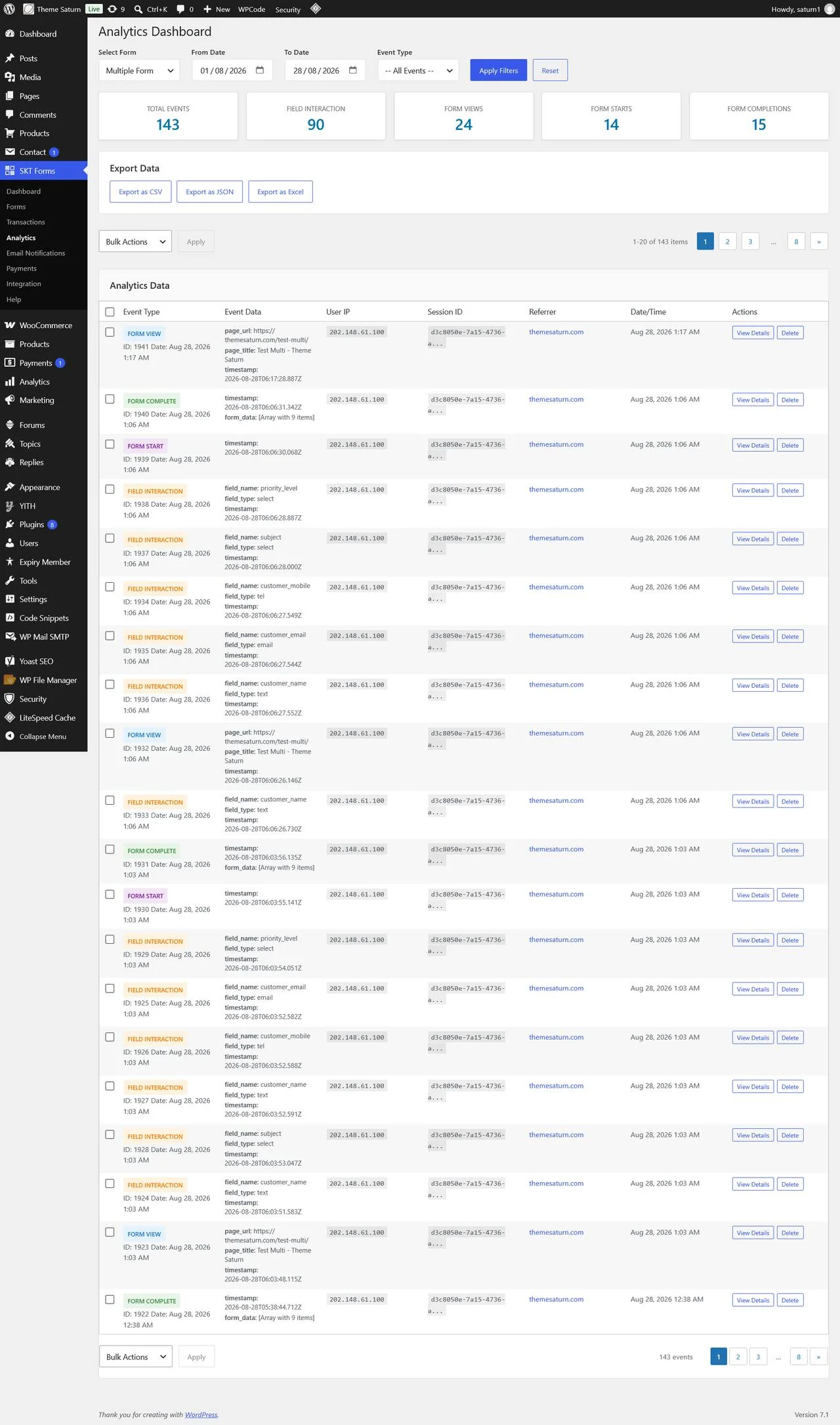
SKT Forms includes an Analytics Dashboard that tracks how visitors interact with your forms.
Analytics Metrics
Form Views
How many times your form was displayed.
Form Starts
How many visitors started interacting with the form.
Field Interactions
How often visitors interacted with individual fields.
Validation Errors
How often fields failed validation.
Form Completions
How many visitors successfully completed the form.
Tracked Events
SKT Forms can track:
form_viewform_startfield_interactionvalidation_errorform_submitpayment_startpayment_completepayment_failedform_completeform_abandon
This can help you identify where visitors are leaving your form before completing it.
You can filter analytics by:
- Form
- Date range
- Event type
Analytics data can be exported as:
- CSV
- JSON
- Excel
Improve Contact Form Accessibility
Your contact form should be usable by as many visitors as possible.
SKT Forms includes three optional accessibility settings.
High Contrast Mode
Improves contrast between text, borders, and backgrounds.
Large Text Mode
Increases the base font size throughout the form.
Screen Reader Optimized
Adds additional ARIA labeling and descriptive text for screen readers.
Customize Your Contact Form Design
SKT Forms provides predictable CSS classes that developers can target with their theme’s stylesheet.
Available classes include:
.skt-forms-form-wrapper
The overall form container.
.skt-forms-field
An individual field wrapper.
.skt-forms-field-label
Field labels.
.skt-forms-field-input
Field inputs.
.skt-forms-submit-btn
The submit button.
This provides additional control over the visual appearance of your contact forms.
Contact Form Creation Best Practices in 2026
Creating a contact form is only the first step. You should also make sure the form is easy and comfortable to use.
Keep Your Contact Form Short
Only ask for information you actually need.
A simple inquiry may only require:
- Name
- Message
Add additional fields when they have a clear purpose.
Use Clear Field Labels
Visitors should immediately understand what each field requires.
Don’t Make Every Field Required
Use required fields for information that is genuinely necessary.
Too many mandatory fields can make visitors less likely to complete the form.
Use Conditional Logic for Longer Forms
Instead of displaying every question at once, use conditional logic to reveal relevant fields when needed.
This can make complex forms easier to complete.
Validate Important Information
Use validation for:
- Email addresses
- Phone numbers
- URLs
- Numeric values
- File types
- File sizes
Protect Your Form From Spam
Use an appropriate CAPTCHA solution to reduce automated submissions.
Provide Confirmation
Let visitors know that their submission was received.
Test Your Contact Form
Test your forms after major WordPress, theme, or plugin updates.
Make the Form Accessible
Consider high contrast, larger text, clear labels, and screen-reader optimization.
Monitor Form Performance
Analytics can help identify forms that receive many views but few completions.
Why Should You Use a Contact Form Instead of Publishing Your Email Address?
Some website owners simply publish their email address on the Contact page.
A contact form can provide several advantages.
Better User Experience
Visitors can contact you directly without having to copy your email address into another application.
Collect Structured Information
You decide which information visitors should provide.
Required Information
Required fields can prevent incomplete submissions.
Spam Protection
CAPTCHA options can help reduce automated spam.
Easier Submission Management
A structured form makes it easier to organize and review submitted information.
Premium Contact Form Plugin or SKT Forms: Which Should You Choose?
The right form builder depends on what your website needs.
Choose a Premium Plugin If:
A premium plugin may make sense if you specifically require:
- A particular CRM integration
- A specific marketing platform
- Specialized automation
- A particular third-party integration
- Features unique to that plugin
- A large established integration ecosystem
Premium form plugins can be powerful, and paying for a feature you genuinely need can be a worthwhile investment.
For example, the supplied WPForms information shows extensive integrations and advanced features distributed across its paid plans.
Choose SKT Forms If:
SKT Forms is a strong choice if you want:
A drag-and-drop WordPress form builder
- Advanced fields
- Conditional logic
- Cross-field validation
- File uploads
- Calculations
- Payment collection
- Multiple payment gateways
- Email notifications
- Spam protection
- Transaction management
- Analytics
- Data exports
- Accessibility options
Most importantly, SKT Forms provides these documented capabilities completely free.
You don’t have to upgrade to a premium plan simply because you need advanced form functionality.
Troubleshooting Common Contact Form Problems
My Contact Form Is Not Displaying
Check that:
- The form Status is Active.
- The shortcode uses the correct form ID.
- The shortcode is correctly formatted.
- There are no JavaScript errors.
- Your theme or another plugin is not causing a conflict.
The shortcode should look like:
[skt_forms id="1"]
My Emails Are Not Arriving
Check:
- Admin Email
- Email notification settings
- From Email
- Sender configuration
Spam/junk folders
Your site’s email delivery configuration
Payments Are Not Processing
Check:
Payment gateway credentials
Test/Live Mode
- Currency
- SSL
- Payment settings
- Webhook configuration
- Webhook Issues
Payment gateways use webhook endpoints to communicate payment status.
The SKT Forms webhook format is:
/wp-json/skt-forms/v1/webhook/
Make sure the webhook URL is publicly accessible and is not blocked by:
- Firewall rules
- Staging passwords
- Server restrictions
Also verify that the webhook secret in SKT Forms matches the secret configured in your payment gateway.
Enable WordPress Debug Logging
If you need additional information while troubleshooting, enable WordPress debug logging in wp-config.php:
define ('WP_DEBUG', true);
define ('WP_DEBUG_LOG', true);
Disable debugging when it is no longer needed on a production website.
Final Thoughts
Creating contact forms for your WordPress website doesn’t need to be complicated.
A basic contact form may only require Name, Email, and Message, but your requirements can grow as your website grows.
You may eventually need:
- File uploads
- Conditional questions
- Advanced validation
- Appointment dates
- Time selection
- Calculations
- Quote requests
- Product selections
- Payment collection
- Email automation
- Submission management
- Analytics
Premium WordPress form plugins can provide many of these capabilities, but access to advanced functionality can depend on the plan you purchase. For example, the supplied WPForms information shows multiple paid tiers and different feature availability across those plans.
SKT Forms takes a different approach.
Instead of requiring you to purchase a premium plan to unlock advanced form functionality, SKT Forms provides its documented form-building, validation, conditional logic, payment, notification, spam-protection, transaction, analytics, export, and accessibility capabilities completely free.
That means you can start with a simple contact form today and continue using SKT Forms when you need a quote form, booking form, survey, donation form, order form, or payment form.
You don’t have to choose between a basic free form plugin and an expensive premium solution simply because your form needs advanced functionality.
Create your WordPress contact form with SKT Forms and get powerful form-building capabilities completely free.
Frequently Asked Questions
How do I create a contact form in WordPress?
Install SKT Forms, go to SKT Forms → Forms → Add New, create your form, add the fields you need, configure validation and notifications, and publish the form using the generated shortcode.
What fields should a contact form have?
A basic contact form generally needs Name, Email, and Message. Depending on your business, you may also need Phone, Dropdowns, Checkboxes, File Uploads, Date, Time, Address, or other fields.
Can I create a contact form without coding?
Yes. SKT Forms uses a drag-and-drop form builder, so you can create and configure forms without writing code.
Is SKT Forms completely free?
Yes. SKT Forms provides the documented advanced form-building and payment functionality completely free, without requiring users to purchase a premium plan to access those capabilities.
Does SKT Forms have conditional logic?
Yes. SKT Forms supports conditional logic with AND/OR rule groups, four actions, and 21 comparison operators.
How many field types does SKT Forms provide?
SKT Forms provides 20 field types covering basic inputs, choices, specialized fields, payments, calculations, layout, and custom content.
Can I accept payments through SKT Forms?
Yes. You can enable Payment Collection and configure supported payment gateways.
Which payment gateways does SKT Forms support?
SKT Forms supports Razorpay, PayU, PayPal, PhonePe, Instamojo, and Cash on Delivery.
Can I create a payment form and contact form using the same plugin?
Yes. A form can begin as a data-collection form and later have Payment Collection enabled when payment functionality is required.
Can visitors upload files?
Yes. SKT Forms includes a File Upload field with controls for allowed file types and maximum file size.
Can I calculate prices automatically?
Yes. Use Calculation and Product Item fields to calculate values, line totals, taxes, delivery charges, and other amounts.
Does SKT Forms protect forms from spam?
Yes. It supports Math Captcha, Google reCAPTCHA, Cloudflare Turnstile, and hCaptcha.
Can I customize email notifications?
Yes. You can customize notification subjects, messages, sender information, and dynamic placeholders.
Can I manage contact form submissions?
Yes. Submissions are recorded in SKT Forms → Transactions, where you can filter, view, approve, delete, and export records.
Can I export form submissions?
Yes. SKT Forms supports CSV, JSON, and Excel exports.
Can I track contact form conversions?
Yes. The Analytics Dashboard tracks form views, starts, field interactions, validation errors, submissions, payments, completions, and abandonment.
Can I customize the appearance of my contact form?
Yes. SKT Forms provides CSS classes that can be targeted through your WordPress theme’s stylesheet.
 Sonal S Sinha is a digital architect and seasoned developer with over 16 years of experience in the web world. As the founder of a premier design and marketing agency, he has helped thousands of startups and small businesses define their identity through custom WordPress theme development.
A self proclaimed WooCommerce enthusiast, Sonal is dedicated to making professional design accessible to everyone. He regularly shares his expertise and a curated selection of free WordPress themes to help new creators launch with confidence. Follow Sonal for a consistent masterclass in scaling your online presence.

